
When you hand over a design to a client, you're not just delivering a file, you're handing them potential legal liability. Canva Pro assets look professional and save hours of work, but most designers can't tell their clients exactly what they're allowed to do with them. This article walks you through how Canva Pro licences work, how to keep proof of your licences organized, and how to protect yourself and your clients from copyright claims.

TL;DR
- Canva Pro gives you broad commercial rights to most assets, but not all content is equal, Free Content has the fewest rights, while Pro Content and Branded Content have more permissive licences.
- You must document every asset used in client work and keep proof (screenshots, exports, invoices) in a central archive so you can prove the asset was licensed if a dispute arises.
- Canva's API and export tools don't track licences automatically, so you need a documented workflow and, ideally, a tool like Licence Downloader to bulk-gather proof.
- Clients need to know the licence restrictions upfront, some assets can't be resold, resized commercially, or used in certain industries.
When a client asks whether they can modify, resell, or republish the design you delivered, you need to answer from a position of documented proof, not guesswork. Canva Pro opens the door to a vast library of assets, but the catch is responsibility. Every asset in Canva falls into one of four content categories, each with different rights and restrictions. Understanding these categories, and then proving which category each asset belongs to, is the difference between sleeping soundly and losing a client to a copyright claim.
Why Canva's Licence Structure Matters
Canva doesn't use a one-size-fits-all licence. Instead, content is sorted into buckets based on who created it and what rights come with it.
"The Content categories, from most to least restrictive, are: Education Content, Branded Content, Pro Content, and Free Content.">, Canva's Content License Agreement
Free Content (images, fonts, templates available to all users) carries the most restrictions. You can use it in personal projects and commercial work, but you usually can't modify the underlying asset, claim ownership of it, or resell the design as a template.
Pro Content (exclusive to Canva Pro subscribers) grants broader rights. You can modify, print, and use these assets in client deliverables for commercial purposes. But reselling the asset itself, using it in competing stock libraries, or using it in certain restricted industries may still be prohibited.
Branded Content comes with specific licence terms tied to the brand owner. A Coca-Cola template or Nike font, for example, has rules about how you can use and modify it.
Education Content is locked to non-commercial, educational use only. Using it in a paid client project violates the licence.
The problem: when you're knee-deep in a project, it's easy to forget which category each asset falls into. Six months later, when a client wants to know if they can republish the design with different copy, you're hunting through your Canva library trying to reverse-engineer the licence.

Common Mistakes Designers Make with Canva Licences
The biggest mistake is assuming all Canva Pro assets are created equal. They're not. Canva Pro gives you access to a larger library, but not everything in that library has the same licence.
Mistake 1: Not documenting which assets you used. You finish a project, export the final PNG or PDF, and move on. Months later, your client wants to modify the design themselves. You can't tell them which Canva elements are in the file because you didn't document them. Worse, if there's a copyright dispute, you have no proof of what you licensed when.
Mistake 2: Mixing Free and Pro assets without tracking them. Many designers use free elements to speed up work, then forget to tell the client they can't commercially resell or modify certain parts of the design.
Mistake 3: Overlooking Branded Content restrictions. Canva's branded templates are gorgeous and tempting. But using a branded template in a client project for a competing company might violate the brand owner's licence terms. You're liable, not Canva.
Mistake 4: Assuming export = licence proof. Exporting a design from Canva doesn't automatically include the licence terms. You need to actively collect and store that information.
How to Track and Prove Your Canva Licences
Set up a simple system from day one. You don't need fancy software, a spreadsheet works. But the moment you scale to multiple clients and projects, you need automation.
For each project, document:
- Project name and client
- Date created
- Each asset used (specific image, font, or element name from Canva)
- Asset category (Free, Pro, Branded, or Education)
- Screenshot or export of the asset's licence information (taken directly from Canva at the time of use)
- Link to the final deliverable

The Process: From Design to Documented Proof
Here's a step-by-step workflow that keeps you protected:
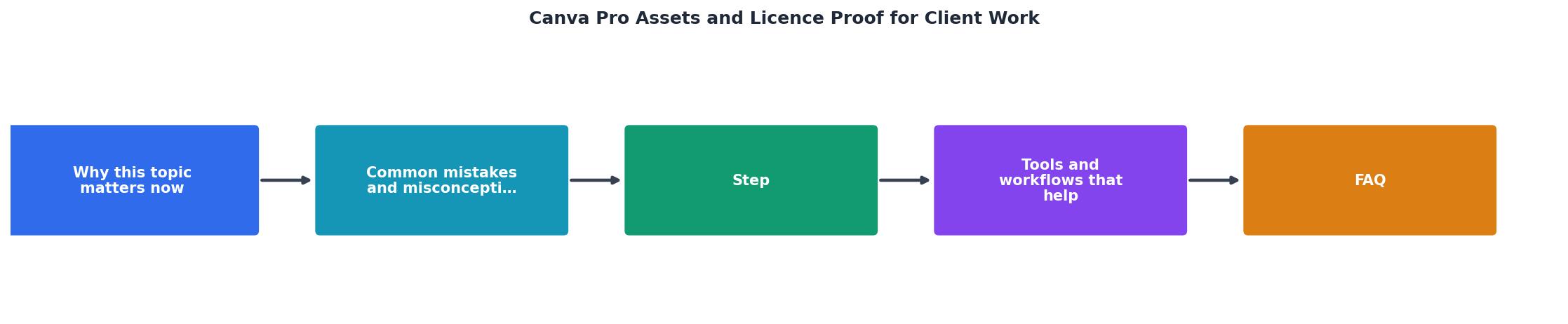
Step 1: Select assets mindfully. As you build a design for a client, prefer Pro Content over Free Content if the client might want to republish or modify the work themselves. Pro Content gives them more flexibility.
Step 2: Screenshot licence info as you go. While the asset is still open in Canva, take a screenshot showing the licence category and any restrictions. Use the Canva editor's "Asset Details" panel or the creator info section.
Step 3: Export the design and document it. Save the final design (PNG, PDF, or Canva file) with a clear naming convention: ClientName_ProjectName_Date_Final. In a folder or spreadsheet, list every Canva asset used.
Step 4: Store screenshots centrally. Create a folder structure: Projects > ClientName > DesignName > Licences. Dump every screenshot there. Include your Canva Pro invoice or subscription proof as well, it shows you had an active subscription on the project date.
Step 5: Prepare a licence summary for the client. Before handing over the design, write a one-paragraph summary of what the client can and cannot do with the work. For example: "This design uses Canva Pro assets licensed under Canva's commercial use agreement. You may use this design for internal marketing and client presentations. You may not resell the design as a template, modify the underlying images for commercial resale, or use the design in competing design platforms."
Tools and Workflows That Actually Scale
A spreadsheet works fine for one or two projects a month. But if you're a freelancer with 5-10 active clients, or an agency running 20+ projects, manual documentation becomes a bottleneck.
Consider these options:
Option 1: Airtable or Google Sheets template. Create a database where each row is an asset: project name, asset name, licence category, screenshot URL (hosted on Google Drive), and date. Automate reminders to fill it in as projects complete. This costs nothing but takes discipline.
Option 2: Canva Teams (for agencies). Canva Teams provides role-based access and some audit logging. It doesn't track licences perfectly, but it gives you a shared library and some transparency into what your team used.
Option 3: Dedicated licence management. Tools like Licence Downloader automate the collection and organization of licence certificates and proof across multiple platforms. If you use Canva alongside Shutterstock, Freepik, or Adobe Stock, a bulk downloader saves hours per month and builds an audit-ready archive.

What to Tell Your Clients About Canva Licences
Transparency prevents misunderstandings. When you deliver a Canva-based design, your client needs to know the restrictions upfront.
For small projects: "This design uses Canva Pro assets. You can use this design for your intended purpose. If you want to make changes, share those with me first so I can ensure we're not violating any licence terms."
For larger or recurring projects: Provide a one-page document listing the key restrictions: what they can and cannot do, which assets are yours to modify and which belong to Canva, and how to request licence documentation if a third party asks for proof.
For agencies managing multiple clients: Create a standard licence addendum to your design contract. It should clarify that assets remain licensed, not owned; that the client can't resell or redistribute the design as-is; and that you'll provide a licence summary document upon completion.
Interactive Licence Tracking Dashboard
To help you visualize how a simple tracking system works, here's an interactive example of what a project licence archive might look like in practice:
Example: Freelancer's Licence Archive
This simple archive shows the power of tracking: you can quickly answer "Did we document the licence for this project?" and "What category of assets did we use?" without digging through your files.
Actionable Licence Documentation Checklist
Canva Licence Documentation Checklist
Your progress is saved automatically in your browser.
FAQ
Frequently Asked Questions
Additional Resources
- Canva's Content License Agreement - Each Pro Content License allows you to use the Content in one Canva Design, so you must pay to obtain a new license each time you wish to use the same piece of ...
- Canva's licensing explained - Our Free and Pro Content licenses cover all of the content we offer (except for Popular Music!) from photos, icons and illustrations, to videos, audio, fonts ...
- Use Canva to design digital and physical products for sale - Canva's Content License Agreement does allow you to use both Canva Free and Pro Content to design and sell a range of products