
Every January, freelance designers scramble to locate licence certificates from the previous year, only to realize half of them are buried in email threads and the other half live on platform dashboards they forgot the password to. A licence vault solves that problem by giving you a single, organized archive of every stock-media licence you hold. This guide walks through setting one up before your 2026 campaign work kicks off, with server-side rendering enabled so your records load fast and stay accessible from any device.
Photo by SHVETS production from Pexels
TL;DR:- A licence vault is a centralized folder structure (local or cloud) that stores every stock-media licence certificate you download, tagged by project, platform, and date.
- Enabling SSR (server-side rendering) on your vault's web interface means licence records are pre-rendered on the server, so they load instantly when a client or lawyer requests proof.
- Set it up once now, and every 2026 campaign starts with audit-ready documentation instead of a frantic search.
Why a licence vault matters now
Stock-media copyright enforcement got noticeably stricter in 2025. Platforms like Shutterstock and Adobe Stock started issuing automated compliance checks, and Freepik updated its licence terms twice in a single year. If you juggle three or more subscriptions, the odds of losing track of a certificate are high.
That number comes from informal polls in freelance design communities, and it matches what most of us experience: you download an image, use it in a client deck, and six months later the client's legal team asks for proof. Without a vault, you are digging through Freepik's download history, Adobe's order page, and Envato's licence PDF exports. Each platform stores this information differently, and some bury it three clicks deep.
A vault eliminates that friction. Think of it as a filing cabinet where every drawer is labeled by campaign, and every folder inside holds the licence PDF, the asset thumbnail, and a short metadata note.
Common mistakes that cost time

Before building your vault, it helps to know what goes wrong for most freelancers:
- Saving licences in the Downloads folder. They get mixed with everything else and eventually deleted during a disk cleanup.
- Relying on platform dashboards. If your subscription lapses or the platform changes its UI, your download history can become inaccessible.
- Naming files generically. A file called
licence.pdftells you nothing. You need the platform name, asset ID, and project slug in the filename. - Skipping SSR for the vault interface. If you use a web-based tool or a self-hosted dashboard to browse your vault, client-side-only rendering means slow initial loads and blank pages when JavaScript fails. SSR pre-renders the HTML on the server, so the page is readable the moment it arrives.
Step-by-step vault setup
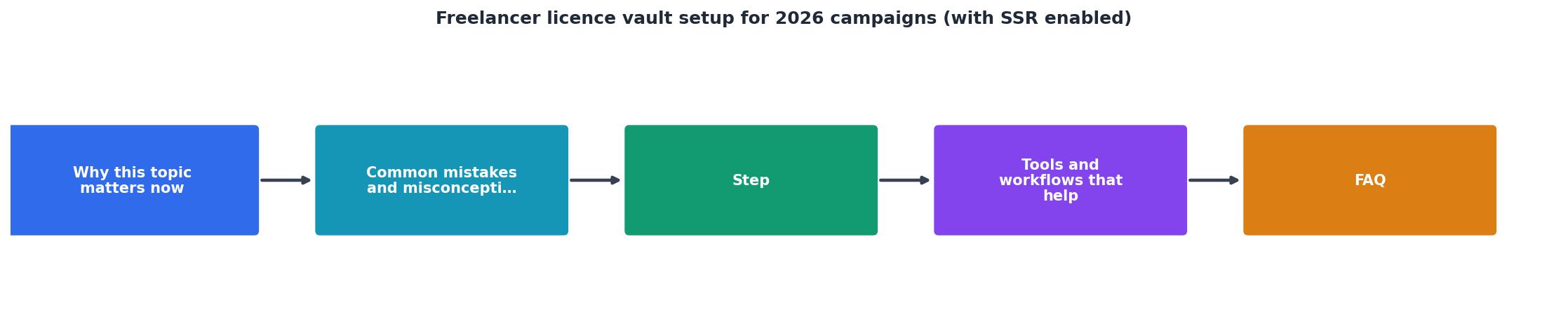
Follow these steps: Choose folder structure, Download certificates, Enable SSR, Tag by project, and Automate backups. Here is each one in detail.
Choose your folder structure
Create a root folder called licence-vault in your cloud storage (Google Drive, Dropbox, or a self-hosted Nextcloud instance). Inside it, create subfolders by platform:
licence-vault/
├── adobe-stock/
├── freepik/
├── envato/
├── shutterstock/
├── istock/
└── canva/
Inside each platform folder, create subfolders by year: 2025/, 2026/. Inside each year, create subfolders by project slug: acme-rebrand/, bloom-social-q1/, etc.
Download every certificate
Log into each platform and export your licence certificates. On Adobe Stock, go to your Licence History and download the CSV plus individual PDFs. On Freepik, navigate to My Downloads and grab the licence document for each asset. On Envato Elements, use the licence certificate download button on each item's page.
This is where a tool like Licence Downloader saves serious time. Instead of clicking through hundreds of assets one by one, you can bulk-download certificates across platforms in minutes.
Enable SSR on your vault interface
If you run a web dashboard to browse your vault (a Next.js or Nuxt app, for instance), enable SSR so the licence list renders on the server before reaching the browser. In Next.js, that means using getServerSideProps or the App Router's server components. In Nuxt 3, SSR is on by default.
"The same toggle will also be available on the License Vault settings page, and you can turn it on or off at any time during your trial.">, Getting started
SSR matters because when a client requests proof at 11 PM and you send them a link, the page needs to load immediately. No spinner, no blank screen, no "please enable JavaScript" message.
Tag every file with metadata
Rename each licence file using this pattern:
[platform]-[assetID]-[project-slug]-[date].pdf
Example: freepik-28374651-bloom-social-q1-2026-01-15.pdf
This naming convention makes files searchable with your OS file finder and ensures you can locate any certificate in seconds.
Automate backups
Set up a nightly sync from your cloud folder to a second location. If you use Google Drive, mirror it to a local NAS or a separate Backblaze B2 bucket. Redundancy protects you if a cloud provider has an outage or accidentally deletes files.
Tools and workflows that help

Here is a quick comparison of manual versus automated vault management:
| Manual Approach | Automated Approach |
|---|---|
| Log into each platform separately | Bulk-download from all platforms at once |
| Rename files by hand | Auto-naming with asset ID and project tag |
| Copy-paste into folders | Auto-sort into platform/year/project folders |
| Hope you did not miss one | Get a completion report showing gaps |
| 2-3 hours per month | 10-15 minutes per month |
A few specific tools worth knowing:
- Licence Downloader at licencedownloader.com handles the bulk-download and naming across Freepik, Shutterstock, Adobe Stock, Envato, iStock, and Canva.
- Hazel (macOS) or File Juggler (Windows) can watch a download folder and auto-sort incoming PDFs into the correct vault subfolder based on filename patterns.
- Rclone syncs your vault folder to a remote backup destination on a cron schedule (or Windows Task Scheduler).
_manifest.json file in each project subfolder listing every asset used, its licence type, and the certificate filename. This makes audits trivial because you hand over one JSON file and a folder of PDFs.Keeping your vault current

A vault only works if you maintain it. Build a habit: every Friday afternoon, spend ten minutes downloading any new licence certificates from the past week and dropping them into the correct folders. If you use a bulk tool, this takes closer to two minutes.
At the start of each new campaign, create the project subfolder immediately. Do not wait until the project is done. By the time you deliver final files, every licence should already be in place.
When a subscription renews or a platform updates its licence terms, re-download the updated certificate. Some platforms issue new PDFs with revised terms, and you want the latest version on file.
Here is an example dashboard showing what a well-maintained vault looks like for a typical freelancer managing three platforms and two active campaigns:
Licence Vault, Jan 2026 Snapshot
Freelancer Licence Vault Setup Checklist
Your progress is saved automatically in your browser.
FAQ
Frequently Asked Questions
_superseded suffix, so you have a record of what terms applied when you originally downloaded the asset. This protects you if a dispute references the original licence date.Additional Resources
- Getting started | License Vault Documentation - Configure User access to licenses. At this step, you can set up JetBrains Account as the first authentication module for your License Vault.
- Efficient JetBrains license management with License Vault - License Vault effectively distributes JetBrains IDE and plugin licenses for your entire organization and provides your team with the ...
- Manage the Idira License - CyberArk Docs - The license that you will receive before you install the Vault server determines how many users, passwords, and files you can store in the Vault.