Adobe Stock Bulk Licence Export for Enterprise Teams
Your enterprise team licensed 2,000 Adobe Stock assets last quarter. Now a client's legal department wants proof for every single one used in their campaign. You open the Adobe Stock dashboard, realize you can only download licence certificates one at a time, and the afternoon disappears. This guide walks you through practical methods to bulk-export Adobe Stock licence records so your team stays audit-ready without burning hours on manual clicks.

Your enterprise team licensed 2,000 Adobe Stock assets last quarter. Now a client's legal department wants proof for every single one used in their campaign. You open the Adobe Stock dashboard, realize you can only download licence certificates one at a time, and the afternoon disappears. This guide walks you through practical methods to bulk-export Adobe Stock licence records so your team stays audit-ready without burning hours on manual clicks.
Photo by Tiger Lily from Pexels
TL;DR:- Adobe Stock's enterprise admin console tracks all licences centrally, but exporting them in bulk requires combining the Licence History CSV, the Adobe Admin Console API, and a structured file-naming workflow.
- Most teams waste time because they treat licence retrieval as a per-asset task instead of a batch process.
- Tools like Licence Downloader can automate the certificate-fetching step across Adobe Stock and other platforms your team uses.
Why bulk licence export matters
Every stock image your team downloads carries a licence agreement. That agreement is your legal shield. Without it, a copyright dispute turns into a he-said-she-said situation where your organization foots the bill.
Enterprise creative teams typically pull assets from Adobe Stock across multiple seats, departments, and sometimes even separate Adobe contracts. The result: licence records scattered across individual accounts with no single source of truth. When an audit hits, someone has to reconstruct the trail manually.
Adobe Stock for enterprise does offer centralized licence management through the Adobe Admin Console. But "centralized" does not mean "easy to export." The console shows licence history, lets admins view who licensed what, and provides individual certificate downloads. Bulk export? That requires extra steps most admins never set up.
"The Adobe Stock for enterprise offering includes sharing rights across the organization by default.">, Adobe Stock for enterprise
This sharing model means any team member can use assets licensed by anyone else on the plan. Great for collaboration. Terrible for tracking unless you build the export workflow from day one.
Common mistakes teams make

Three patterns show up repeatedly when enterprise teams try to manage Adobe Stock licences:
- Relying on individual users to save their own certificates. People forget. People leave the company. Certificates vanish with their laptops.
- Confusing the invoice with the licence. Your Adobe enterprise invoice proves you paid. It does not prove which specific assets were licensed or under what terms. Clients and legal teams want the per-asset licence certificate, not a billing PDF.
- Waiting until an audit to gather records. Retroactive licence gathering across 50 team members and 18 months of downloads is a project in itself. One that nobody budgeted time for.
The fix for all three: treat licence export as an automated, recurring process rather than a one-off emergency response.
Step-by-step bulk export workflow
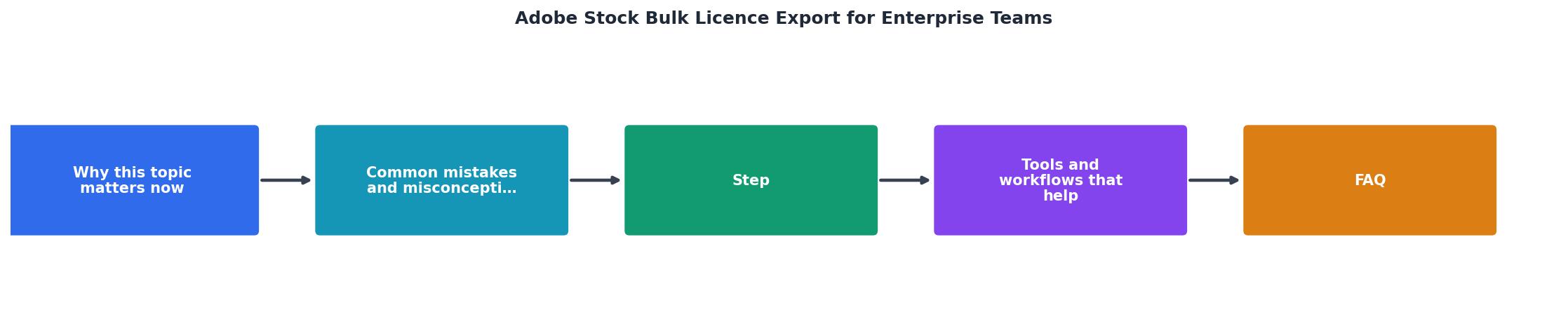
Here is the process broken into concrete steps. The diagram above shows the flow: Audit seats → Export CSV → Match assets → Download certificates → Archive.
1. Audit your Adobe Stock seats
Log into the Adobe Admin Console at adminconsole.adobe.com. Navigate to Products > Adobe Stock and review every assigned seat. Document which users have active licences and which seats belong to former employees or contractors. Remove orphaned seats, but export their licence history first.
2. Export the Licence History CSV
Inside the Admin Console, go to Insights > Logs > Content Logs. Adobe provides a downloadable CSV of all stock transactions across your enterprise plan. This file includes:
- Asset ID
- Licence date
- Licensing user
- Licence type (Standard or Enhanced)
- Asset title and thumbnail URL
3. Match assets to projects
Your CSV gives you the raw data. Now map each asset to the client project or campaign where it was used. If your team uses a Digital Asset Management (DAM) system like Adobe Experience Manager, Bynder, or Brandfolder, cross-reference asset IDs. If not, a shared spreadsheet with columns for Asset ID, Project Name, and Client works.
4. Download individual certificates in batch
This is where the manual pain hits. Adobe Stock does not offer a "download all certificates" button. You have two options:
- Adobe Stock API: Use the
Content/Licenseendpoint to programmatically retrieve licence info for each asset ID from your CSV. This requires developer resources and API credentials from your enterprise contract. - Licence Downloader: If your team also uses Shutterstock, Envato, Freepik, or other platforms alongside Adobe Stock, licencedownloader.com can pull licence certificates in bulk across all of them, saving you from building separate integrations per platform.
5. Archive with consistent naming
Store exported certificates using a predictable naming convention:
[AssetID]_[Platform]_[LicenceType]_[Date].pdf
Example: 483920175_AdobeStock_Standard_2026-08-15.pdf
Drop these into a folder structure organized by client or project. Your future self (or your successor) will thank you.
Tools and workflows that help

No single tool solves every piece of this puzzle. Here is what a solid enterprise stack looks like:
| Manual Approach | Automated Approach |
|---|---|
| Click each asset, download certificate | API or Licence Downloader batch pull |
| Copy-paste into spreadsheet | CSV export from Admin Console |
| Store on individual desktops | Centralized DAM or cloud folder |
| Audit takes days | Audit takes hours |
| Breaks when people leave | Survives team turnover |
Adobe Admin Console handles seat management and content logs. The Adobe Stock API handles programmatic licence retrieval if you have developer capacity. A DAM system handles asset-to-project mapping. And a tool like Licence Downloader bridges the gap when your team works across multiple stock platforms, not just Adobe.
The following dashboard shows what a typical enterprise licence tracking setup looks like after implementing this workflow:
Enterprise Licence Export Dashboard
Building a recurring export schedule

A one-time export solves today's problem. A recurring schedule prevents the next one. Here is what works for teams licensing more than 100 assets per month:
- Weekly: Automated CSV pull from the Admin Console content logs. A simple cron job or scheduled task that hits the Adobe API and appends new entries to your master spreadsheet.
- Monthly: Batch-download certificates for all new assets. Run Licence Downloader or your API script against the delta (new asset IDs not yet in your archive).
- Quarterly: Reconciliation. Compare your archive against the master CSV. Flag gaps. Check for deprovisioned seats that still have unarchived licences.
- On offboarding: Before removing any team member's Adobe seat, export their complete licence history and certificates. Add this to your IT offboarding checklist.
Teams that follow this cadence typically reach 95%+ licence coverage within the first quarter. The remaining gaps are almost always orphaned seats from before the process was established.
Enterprise Adobe Stock Licence Export Checklist
Your progress is saved automatically in your browser.
FAQ
Frequently Asked Questions
Additional Resources
- Adobe Stock for enterprise - Learn how to use the Admin Console to add Adobe Stock entitlement to groups, specify stock asset download limits for groups, and monitor the ...
- Add ability to export license history to Adobe Stock for teams - As you're all no doubt aware, Adobe Stock for teams allows for wide open consumption for all users from an account. So long as the user's ID is associated ...
- Adobe Stock for enterprise - If your organization purchased an Adobe Stock for enterprise plan, users will license Adobe Stock assets with credits.
Need to Download Your Licences?
Save hours of manual work. We download all your stock photo licence certificates for you.
Get Started“Thanks to LicenceDownloader.com, I was able to download more than 1,000 Freepik licences and receive them all at once via ZIP.”
Marlon Mainardy