Assigning iStock Licences to Team Members
Your agency downloads hundreds of iStock assets every month across multiple client projects, but nobody can tell you which designer used which image or where the licence proof lives. When a client's legal team asks for documentation, the scramble begins. A clear licence assignment process eliminates that fire drill and turns compliance into a routine five-minute task instead of a two-day panic.


Your agency downloads hundreds of iStock assets every month across multiple client projects, but nobody can tell you which designer used which image or where the licence proof lives. When a client's legal team asks for documentation, the scramble begins. A clear licence assignment process eliminates that fire drill and turns compliance into a routine five-minute task instead of a two-day panic.
Photo by Gustavo Fring from Pexels
TL;DR:- Set up role-based permissions on your iStock team account so every download is tied to a specific person.
- Track licence usage with a shared spreadsheet or asset management tool that logs asset ID, project, and assignee.
- Audit quarterly and keep licence certificates in a central archive to stay compliant with iStock's terms.
Why licence assignment matters
Agencies operate with shared accounts. Three designers, two freelancers, and a social media manager all pulling from the same iStock subscription. Without assignment, you get a download history that reads like an anonymous transaction log. Nobody knows who grabbed that hero image for the Q3 campaign, and nobody can prove the licence covers the way it ended up on a billboard.
The risk is real. iStock licences are tied to specific usage rights: editorial vs. commercial, print run limits, and restrictions on resale. If a team member uses an editorial-only image in a paid ad, the agency carries the liability. Assigning licences to individuals creates accountability and a paper trail that protects everyone.
Beyond legal risk, there is a cost angle. Duplicate downloads happen constantly when teams lack visibility. One designer downloads an image on Monday, another grabs the same file on Thursday. That is two credits spent on one asset. Proper assignment and tracking cut waste.
Set up account permissions

iStock (through Getty Images) offers team plans that let an admin invite members and control access. Here is how to configure permissions effectively:
- Create a team account under your agency's primary email. This becomes the admin seat.
- Invite members by email through the iStock account dashboard. Each person gets their own login credentials.
- Assign roles based on responsibility. Admins manage billing and permissions. Standard users download assets. View-only users can browse but not download.
- Set download budgets per user if your plan supports it. This prevents any single person from burning through the monthly allocation.
- Disable shared credentials. If people log in with the same username and password, you lose all traceability. Every person needs their own seat.
"The method you use depends on whether you want to assign or unassign licenses for specific users, or assign or unassign users for a specific product.">, Assign or unassign licenses for users in the Microsoft 365 admin center
The same principle applies to iStock. You either start from the user and assign them access, or start from the subscription and add users to it. For agencies with multiple iStock plans (say, a standard plan and a premium plan), the second approach keeps things cleaner.
Track licence usage

Permissions control who can download. Tracking tells you what they downloaded and where it went. These are two separate problems.
A practical tracking system includes these fields:
- Asset ID (iStock file number)
- Download date
- Downloaded by (team member name)
- Client / project the asset is assigned to
- Licence type (Standard, Extended, Editorial)
- Usage context (web, print, social, video)
- Licence certificate file (link to stored PDF or screenshot)
iStock's own download history helps, but it only shows what was downloaded and when. It does not tell you which client project consumed the asset. That mapping has to come from your team.
For agencies handling hundreds of assets monthly, a tool like licencedownloader.com can bulk-export licence certificates from iStock and other platforms into a single archive. That eliminates the manual step of screenshotting each licence page.
Here is an example dashboard showing what a typical mid-size agency's licence tracking might look like across a quarter:
Example: Q2 iStock Licence Tracker
Ensure compliance with iStock terms

iStock licences come with specific restrictions. Ignoring them does not make them disappear. Here are the compliance areas that trip agencies up most often:
- Editorial vs. commercial use. Editorial images cannot appear in ads, product packaging, or promotional materials. Tag every editorial download clearly in your tracker.
- Print run limits. Standard licences cap reproduction at 500,000 copies. If a client's direct mail campaign exceeds that, you need an Extended licence.
- No sublicensing. You cannot hand the raw iStock file to a client and let them use it independently. The licence covers your agency's use on behalf of the client.
- Multi-seat compliance. Each person downloading needs to be on the account. Sharing login credentials violates iStock's terms and voids the licence.
The assignment workflow
This diagram shows the complete process from download to archived proof:
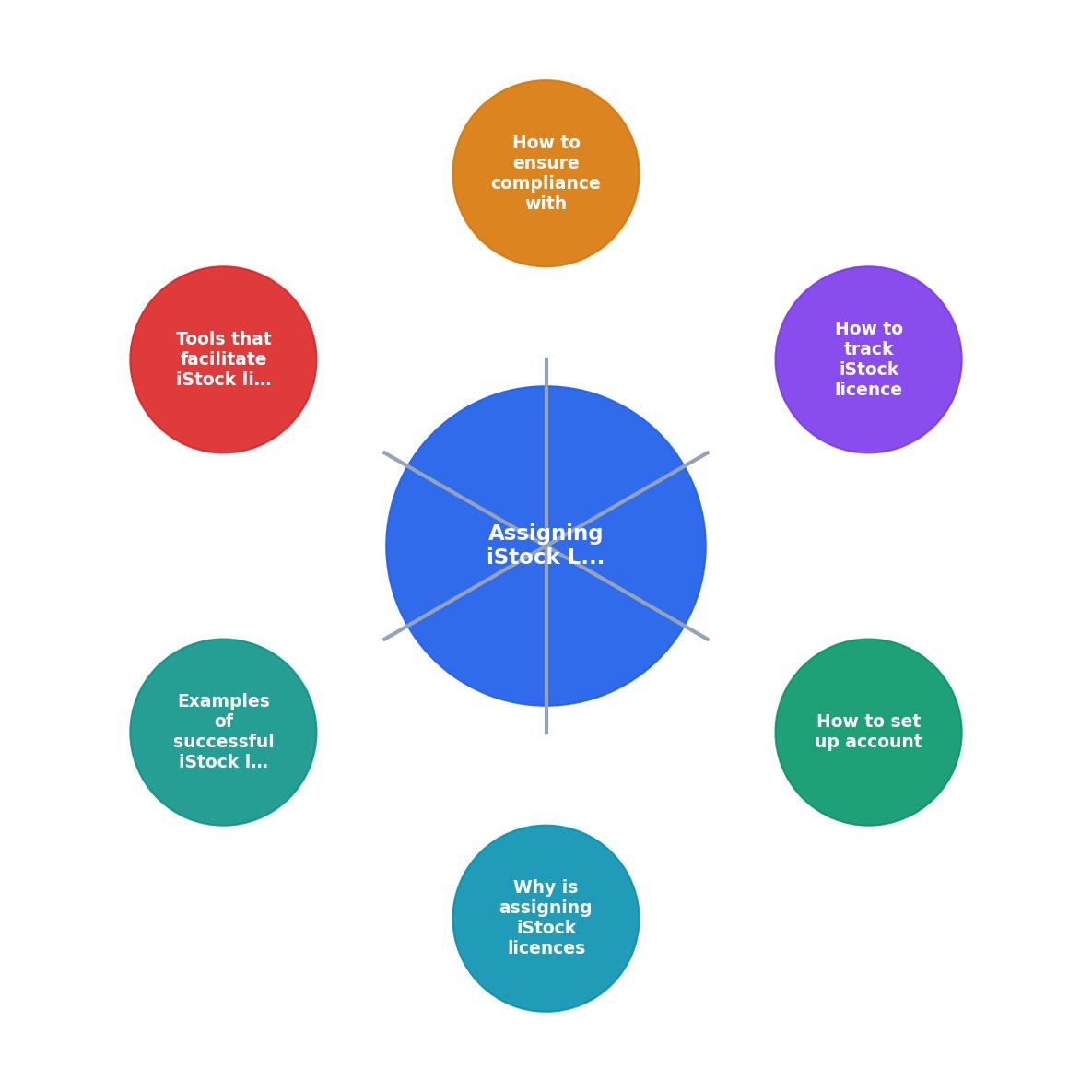
The steps break down simply: Download Asset, Log in Tracker, Assign to Project, Archive Certificate, Quarterly Audit. Each step has a clear owner. The designer handles the first three. The ops lead owns the archive and audit.
| Manual Process | Structured Assignment |
|---|---|
| Shared login, no traceability | Individual seats with role-based access |
| Licence proof scattered across inboxes | Centralized certificate archive |
| Duplicate downloads undetected | Tracker flags existing assets |
| Compliance checked reactively | Quarterly audits catch issues early |
| Freelancer offboarding leaves gaps | Time-limited access with archived history |
Tools that help
Several tools support iStock licence management at the agency level:
- iStock Team Plans provide built-in user management, download history, and role assignment directly on the platform.
- Google Sheets / Airtable work well as lightweight trackers. Create a shared base with the fields listed above and make logging a daily habit.
- Digital asset management (DAM) platforms like Bynder, Brandfolder, or Canto store assets alongside their licence metadata. Useful for agencies managing thousands of files.
- Licence Downloader at licencedownloader.com bulk-downloads licence certificates from iStock and other stock platforms, giving you a single folder of audit-ready PDFs.
iStock Licence Assignment Setup Checklist
Your progress is saved automatically in your browser.
FAQ
Frequently Asked Questions
Additional Resources
- License Agreement - This is a license agreement between you and iStock that explains how you can use photos, illustrations, vectors, video clips and Music that you license from ...
- Adobe Stock license sharing - Hello,I subscribed to an Adobe Stock plan for my company, because it was specified that a subscription could be shared between several collaborators. But ...
- Assign or unassign licenses for users in the Microsoft 365 ... - In the admin center, go to the Billing > Licenses page. · Select a product. · On the product details page, select Assign licenses. · In the Assign ...
Need to Download Your Licences?
Save hours of manual work. We download all your stock photo licence certificates for you.
Get Started“Thanks to LicenceDownloader.com, I was able to download more than 1,000 Freepik licences and receive them all at once via ZIP.”
Marlon Mainardy