Procedure for Downloading Licences from Bigstock
A client emails you three months after a project wraps, asking for proof that the hero image on their landing page is properly licensed. You bought it on Bigstock, you know you bought it, but now you need the actual certificate. Bigstock does not make this obvious, and the clock is ticking. This guide walks you through every step of finding, downloading, and organizing your Bigstock licence documents so you never scramble again.

A client emails you three months after a project wraps, asking for proof that the hero image on their landing page is properly licensed. You bought it on Bigstock, you know you bought it, but now you need the actual certificate. Bigstock does not make this obvious, and the clock is ticking. This guide walks you through every step of finding, downloading, and organizing your Bigstock licence documents so you never scramble again.
TL;DR:- Log into your Bigstock account and navigate to My Account > Downloads to find your licence history.
- Each downloaded asset has a licence certificate accessible via the download details or invoice section.
- Save certificates in a structured folder system (by client, project, or date) so you stay audit-ready without wasting billable hours.
Why Bigstock Licences Matter
Stock photo platforms grant you a licence to use an image, not ownership of it. That distinction trips up freelance designers constantly. When a client, their legal team, or an ad platform questions whether an image is properly licensed, the burden of proof falls on you. A downloaded licence certificate is your receipt, your shield, and your professional credibility rolled into one PDF.
Bigstock offers two main licence types: Standard and Extended. The Standard licence covers most commercial uses (websites, social media, presentations) for up to 500,000 print copies. The Extended licence removes that cap and allows use in merchandise, templates, and products for resale.
"The Extended License requires a license per project.">, Licensing
This means you cannot reuse a single Extended licence across multiple client projects. Each project needs its own. Keeping track of which licence belongs to which project is exactly why downloading and organizing these documents matters.
Access Your Bigstock Account

Start at bigstockphoto.com and sign in with your credentials. If you use a subscription plan, make sure you log into the account that holds the active subscription (not a secondary or expired one).
Once logged in, look at the top-right corner of the page. You will see your account avatar or username. Click it to open the account dropdown. From there, select My Account. This is your dashboard for everything: downloads, subscription status, invoices, and licence history.
A few things to check before you start pulling licences:
- Verify your subscription status. An expired subscription does not erase your download history, but the interface can behave differently.
- Check your email address. Bigstock sends licence confirmations to your registered email. If that inbox is outdated, update it now.
- Note your account type. Individual accounts and team/business accounts display download history in slightly different layouts.
Find Your Licences
The Downloads section is where Bigstock stores every asset you have ever downloaded under your account. Navigate to My Account > Downloads. You will see a grid or list of thumbnails showing each image, vector, or video you have pulled.
Each entry shows:
- Asset title and ID number
- Download date
- Licence type (Standard or Extended)
- File size and format
Click on any individual asset to expand its details. Here you will find the licence certificate link or a button labeled Download Licence (the exact wording varies slightly depending on interface updates). This generates a PDF or opens a page confirming your licence terms, asset ID, purchase date, and permitted uses.
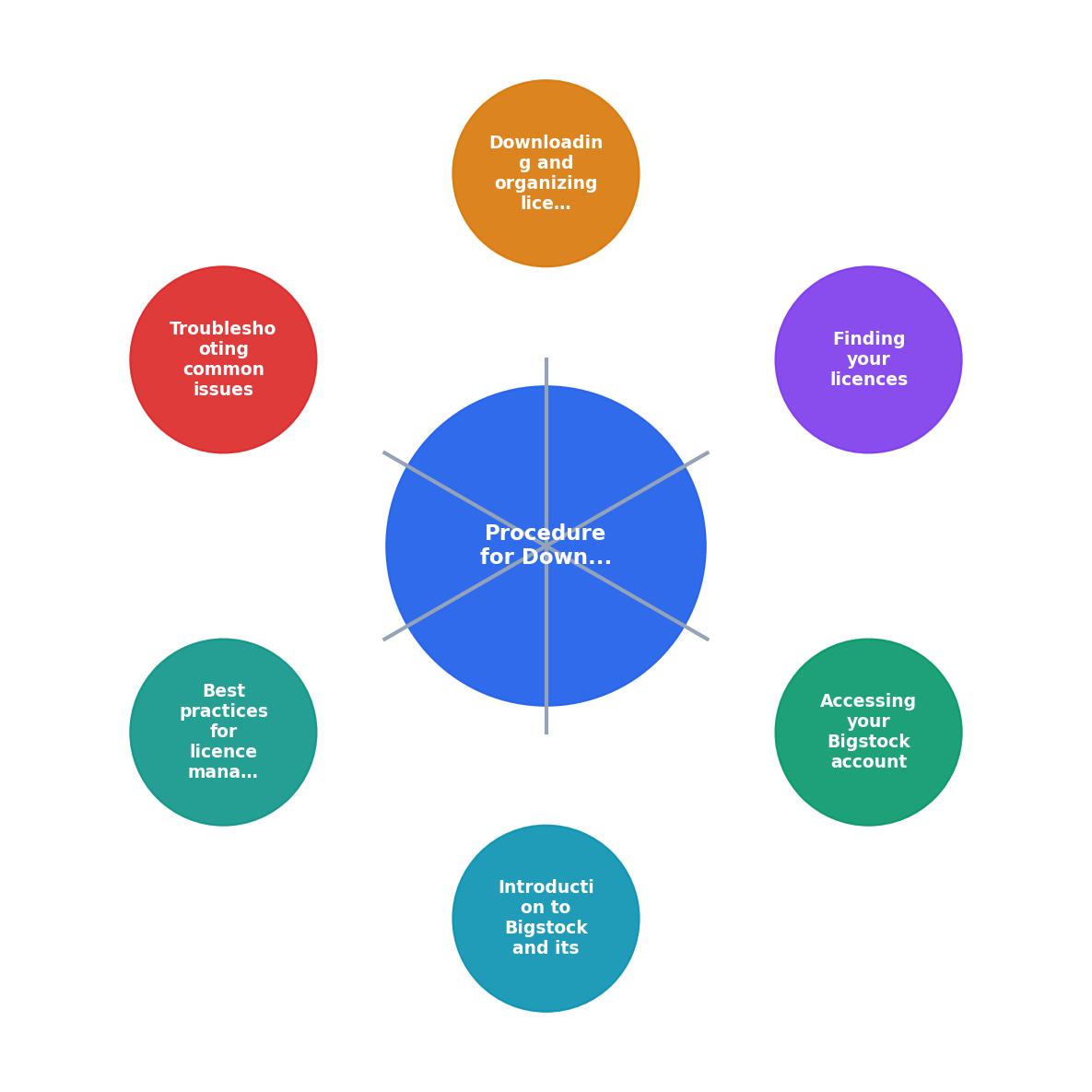
The process follows these steps: Log In, then My Account, then Downloads, then Select Asset, then Download Licence, and finally Save to Project Folder. Keep these short steps in mind as a repeatable routine.
Download and Organize Licences
Downloading the certificate is half the job. The other half is putting it somewhere you can actually find it later. Here is a folder structure that works well for freelance designers:
/Licences
  /ClientName-ProjectName
    /Bigstock
      licence-12345678.pdf
      licence-23456789.pdf
    /AdobeStock
    /Freepik
Each licence PDF goes into a subfolder named after the platform, nested inside the client-project folder. This way, when a client asks for proof, you open one directory and hand over everything.
A few practical tips:
- Rename files consistently. Use a pattern like
bigstock-licence-[AssetID]-[Date].pdfso you can sort and search by ID or date. - Back up to cloud storage. Google Drive, Dropbox, or OneDrive all work. The point is redundancy. A dead hard drive should not mean lost proof.
- Download immediately after purchase. Do not wait. The five seconds it takes to save the certificate now saves thirty minutes of hunting later.
- Keep invoices alongside licences. Your Bigstock invoice (found under My Account > Invoices) confirms payment. Pair it with the licence certificate for complete documentation.
Troubleshoot Common Issues

Things go wrong. Here are the most common problems and how to fix them:
Licence certificate not available for an asset. This usually happens with assets downloaded under a free trial or promotional credit. Check whether the download was part of a paid subscription or a trial. Trial downloads may have different licence terms or limited documentation.
Download history appears empty. Clear your browser cache and try again. If the issue persists, check that you are logged into the correct account. Freelancers who have switched between personal and business accounts sometimes look in the wrong place.
Expired subscription blocks access. Your download history and licence records should remain accessible even after a subscription expires. If you cannot access them, contact Bigstock support directly through their help center. Reference your account email and the approximate dates of your downloads.
PDF will not open. Bigstock licence PDFs are standard format. If one fails to open, try a different PDF reader (Adobe Acrobat Reader, Foxit, or your browser's built-in viewer). A corrupted download can be re-downloaded from the same asset detail page.
| Problem | Quick Fix |
|---|---|
| Missing certificate link | Check if asset was from a trial or promo |
| Empty download history | Verify correct account; clear browser cache |
| Expired subscription | History persists; contact support if locked out |
| Corrupted PDF | Re-download from asset detail page |
Best Practices for Licence Management
Staying organized is not glamorous, but it separates professionals from amateurs. Here are habits that keep your licence records audit-ready:
- Set a monthly review. Block 15 minutes on the last Friday of each month to verify that every asset you downloaded that month has a matching licence file saved.
- Tag files with client names. If your cloud storage supports tags or labels, use them. Searching by tag is faster than browsing folders.
- Keep a simple spreadsheet. A Google Sheet with columns for Asset ID, Platform, Client, Project, Licence Type, and Download Date gives you a searchable index of everything.
- Share proof proactively. When delivering final files to a client, include a folder of licence certificates. It builds trust and prevents future back-and-forth.
Here is an example dashboard showing what a well-organized freelancer's licence tracking might look like after a typical quarter of work:
Quarterly Licence Tracker (Example)
Bigstock Licence Download Checklist
Your progress is saved automatically in your browser.
FAQ
Frequently Asked Questions
What is your current system for storing licence certificates, and has it ever saved you during a client audit? Share your approach in the comments.
Additional Resources
- Licensing | Big Stock Help Center - There is no time limitation in using the image and licenses do not expire. All content on Bigstock includes our Standard Content Usage Agreement ...
- How do I Download Licensed Adobe Stock Images? - I am new to using Ps, Ai, Lr and St. All of Cc really. As I work on developing my website and write posts for later publication, I am doing what I can ...
- bigstock standard content usage agreement - Please read this Agreement carefully before downloading any Bigstock images ("Image(s)") or footage (“Footage”) (collectively, “Content”)By downloading any ...
Need to Download Your Licences?
Save hours of manual work. We download all your stock photo licence certificates for you.
Get Started“Thanks to LicenceDownloader.com, I was able to download more than 1,000 Freepik licences and receive them all at once via ZIP.”
Marlon Mainardy