Download dl licence: Practical Guide
Every stock image you download comes with a licence. That licence is your proof of legal use, and without it you are one client dispute away from a very expensive headache. This guide walks you through exactly how to download your stock-media licence certificates from every major platform, organize them, and keep them ready for the moment someone asks for proof. No guesswork, no wasted billable hours, just a clear process you can follow today.


Every stock image you download comes with a licence. That licence is your proof of legal use, and without it you are one client dispute away from a very expensive headache. This guide walks you through exactly how to download your stock-media licence certificates from every major platform, organize them, and keep them ready for the moment someone asks for proof. No guesswork, no wasted billable hours, just a clear process you can follow today.
Photo by Olena Bohovyk from Pexels
TL;DR:- Every stock platform stores licence certificates differently, and most bury them deep in account settings or download history.
- You need a repeatable system: download the licence at the same time you download the asset, name it consistently, and store it alongside the project files.
- Tools like Licence Downloader let you bulk-export certificates across Freepik, Shutterstock, Adobe Stock, and others in minutes instead of hours.
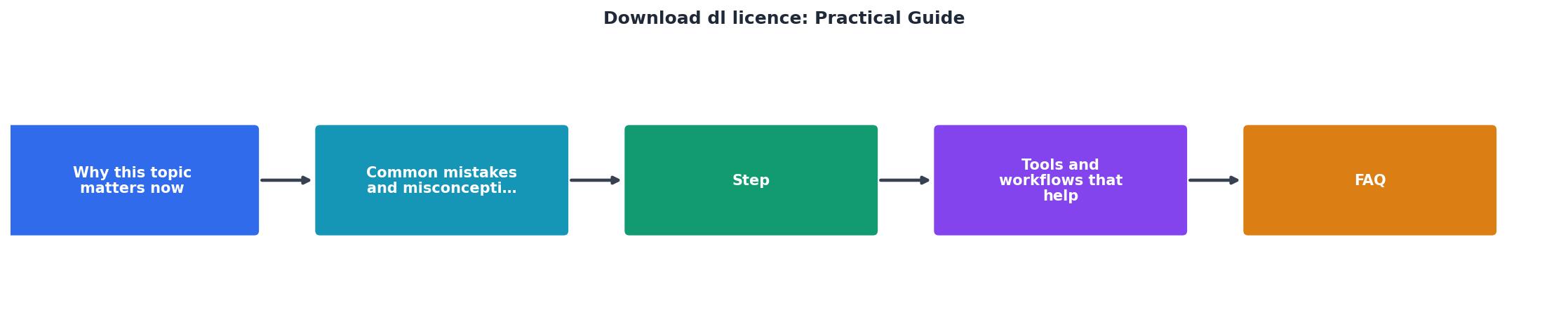
Why licence downloads matter now
Stock image copyright claims are not theoretical. Platforms like Getty and Shutterstock actively pursue unauthorized use, and automated content-matching tools make detection faster than ever. A single missing licence certificate can turn a routine client handoff into a legal scramble.
The problem is not that you forgot to buy the licence. You paid for it. The problem is that you cannot find the receipt six months later when a client's lawyer sends an email at 9 PM on a Friday. Freelance designers juggle Freepik, Adobe Stock, Envato, and sometimes Canva or iStock on the same project. Each platform has its own dashboard, its own export format, and its own way of hiding the actual certificate behind three clicks and a dropdown menu.
That is why a deliberate download-and-file process matters. Treat licence certificates like invoices: download them immediately, name them clearly, and store them where you can retrieve them in under a minute.
Common mistakes that cost you time

Most freelancers make the same handful of errors when it comes to licence management. Recognizing them is the first step to fixing the workflow.
- Assuming the download history is enough. Platforms can change their UI, archive old purchases, or even shut down. Your Freepik download history from 2023 might not be accessible in 2027.
- Saving the image but not the certificate. You drag the JPEG into your project folder and close the browser tab. The licence PDF stays un-downloaded on the platform's server.
- Using vague file names. A folder full of
licence.pdf,licence(1).pdf, andlicence_final.pdfis useless when you need to match a specific image to its proof. - Mixing personal and client accounts. If you download assets from your personal Shutterstock subscription for a client project, the licence trail gets murky fast.
- Waiting until someone asks. Retroactively hunting for a licence certificate across four platforms is the worst possible use of a billable afternoon.
clientname_platform_assetID_licence.pdf takes five seconds and saves five hours later.Step-by-step licence download process
Here is the exact workflow. It works whether you use one platform or five.
1. Download the asset
Get the stock image, vector, or video from the platform as you normally would. Keep the browser tab open.
2. Locate the licence certificate
Each platform stores this differently:
- Freepik: Go to your profile, then "Downloads." Click the three-dot menu next to the asset and select "Download licence."
- Shutterstock: Navigate to "Download history" in your account. Each asset row has a "Download licence" link on the right side.
- Adobe Stock: Open "Licensing history" under your account menu. Click the licence icon next to the asset.
- Envato Elements: Visit "Downloads" in your dashboard. Each item has a "Download licence certificate" button.
- iStock: Check "Download history" and click "Download invoice/licence" for each asset.
- Canva: Canva Pro licences are tied to your subscription. Export your usage history from account settings.
3. Name the file consistently
Rename the downloaded PDF immediately. Use a pattern like:clientname_platform_assetID_licence.pdf
Example: acmebrand_shutterstock_2198437651_licence.pdf
4. Store it with the project
Drop the renamed licence file into the same folder as the project deliverables. If you use a cloud drive (Google Drive, Dropbox, OneDrive), create a licences subfolder inside each project directory.
5. Log it
Keep a simple spreadsheet or Notion table with columns for: asset ID, platform, client, project, download date, and licence file path. This index makes retrieval instant.
"The above guide is full of information that will help prepare you for your knowledge and drive tests.">, Driver guides
Tools and workflows that help

Manual downloading works when you use ten images a month. It breaks down at fifty. Here is what scales.
| Manual Download | Bulk Download Tool |
|---|---|
| Visit each platform separately | Connect all platforms once |
| Click through 3-5 screens per licence | Export all licences in one batch |
| Rename files one by one | Auto-naming with asset metadata |
| 2-3 minutes per certificate | Seconds per certificate |
| Easy to forget or skip | Consistent and complete |
Licence Downloader connects to Freepik, Shutterstock, Adobe Stock, Envato, iStock, Canva, and other platforms. It pulls every licence certificate you have, names them with the asset ID and platform, and exports them as organized files. For a freelancer handling multiple client projects across multiple subscriptions, this turns a weekly chore into a five-minute task.
Other tools that complement the workflow:
- Google Drive / Dropbox: Cloud storage with folder structure per client and project.
- Notion or Airtable: Licence tracking database with search and filter.
- Hazel (Mac) or File Juggler (Windows): File automation rules that auto-sort downloaded PDFs into the right folders based on filename patterns.
Example: Freelancer Licence Archive
This example represents a freelancer who has been working across five platforms for about two years. Without a bulk tool, downloading and organizing 272 individual certificates would take an entire workday. With Licence Downloader, it took one session.
Your licence download checklist
Use this checklist every time you start a new client project or complete a stock image purchase.
Licence Download Checklist
Your progress is saved automatically in your browser.
FAQ
Frequently Asked Questions
Additional Resources
- Driver guides - Washington State Department of Licensing - This guide will help you learn driving laws in Washington and what's expected of you when you're operating a vehicle. Use the links below to download a PDF ...
- DL-7 - Texas Driver Handbook - You may obtain an application at any driver license office or download an application from our website at www.dps.texas.gov/DriverLicense/ApplyforLicense.htm.
- Driver Education | Department of Revenue - Motor Vehicle - Here you will find our Driver Handbook, Driver Handbook in Spanish, Commercial Driver License Manual, Motorcycle Operator's Handbook, Parent's Supervised ...
Need to Download Your Licences?
Save hours of manual work. We download all your stock photo licence certificates for you.
Get Started“Thanks to LicenceDownloader.com, I was able to download more than 1,000 Freepik licences and receive them all at once via ZIP.”
Marlon Mainardy