How to Download Your Freepik Licence Certificate
Navigating the world of stock images can be tricky, especially when it comes to managing licences. For designers and creators, having proof of licence is crucial to avoid legal troubles. This guide will walk you through the process of downloading your Freepik licence certificates, ensuring you have the necessary documentation at your fingertips.


Navigating the world of stock images can be tricky, especially when it comes to managing licences. For designers and creators, having proof of licence is crucial to avoid legal troubles. This guide will walk you through the process of downloading your Freepik licence certificates, ensuring you have the necessary documentation at your fingertips.
Photo by Jakub Zerdzicki from Pexels
TL;DR: To download your Freepik licence certificate, log into your Freepik account, navigate to the downloads section, and find the licence certificate option for each purchased item. Save these certificates in a secure location to ensure compliance with legal requirements.
Understanding how to efficiently download and manage your Freepik licence certificates can save you from future headaches. With stock media becoming an integral part of design projects, ensuring you have legal proof of usage is more important than ever. This article will guide you through the Freepik dashboard, show you where to find your certificates, and provide tips on organizing them effectively.
What are Freepik Licence Certificates?
Freepik licence certificates are official documents that validate your right to use specific stock media items. These certificates are crucial because they serve as legal proof that you have purchased or downloaded the media with the appropriate rights. Without these documents, you could face copyright claims, which can lead to legal issues and damage your professional reputation.
Freepik, as a leading provider of free and premium stock images, vectors, and illustrations, offers a wide array of digital assets used by millions of creators worldwide. When you download or purchase a piece of content from Freepik, you are granted a licence that outlines your rights and restrictions concerning the use of that content. The licence certificate is the tangible proof of this agreement, detailing the terms under which you can use the media.

How to Access the Freepik Dashboard
Accessing the Freepik dashboard is your first step towards downloading your licence certificates. Here’s how you can do it:
- Log in to your Freepik account: Use your credentials to access your account. If you don’t have an account yet, you will need to create one before you can download any certificates.
- Navigate to the dashboard: Once logged in, find the dashboard option, usually located in the top menu. The dashboard serves as your control center on Freepik, allowing you to manage your downloads, purchases, and account settings.
- Locate the downloads section: This section will list all the items you've downloaded or purchased. It's organized in a way that allows you to quickly access your most recent downloads or search for older items.
Pro tip: Bookmark the Freepik dashboard for quicker access in the future. This simple step can save you time and make it easier to manage your licences, especially when under tight deadlines.
Where to Find Licence Certificates on Freepik
Finding your licence certificates on Freepik is straightforward once you're familiar with the dashboard. The platform is designed to streamline the process of accessing your licences, ensuring that you can retrieve them whenever necessary.

- Go to the downloads section: Here, you will see a list of your downloaded items. This section is organized to help you quickly find the items you need, with search filters and categories available.
- Select an item: Click on the item for which you need the licence certificate. Each item will have its own set of details, including the option to view or download the licence.
- Download the certificate: Look for an option to download the licence certificate. This might be a button labeled "Download Certificate" or something similar. The certificate will typically be in PDF format, which is easy to store and print if necessary.
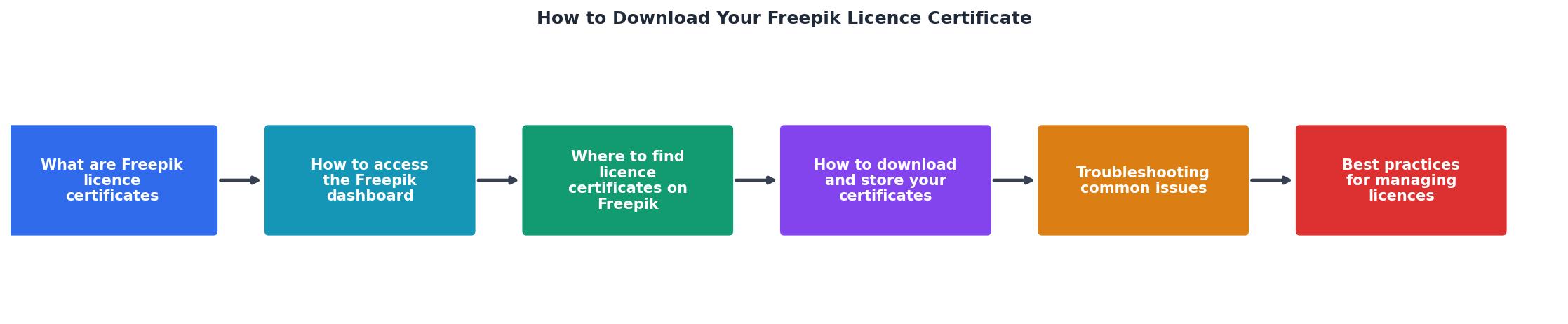
How to Download and Store Your Certificates
Once you've located the licence certificates, downloading and storing them efficiently is key. Having a systematic approach to managing your licences can make a significant difference in your workflow.

Steps to download and store your certificates:
- Download the certificate: Click the download button and save the file to your computer. Ensure that the file is saved in a format that is easy to access and view, such as PDF.
- Organize your files: Create a dedicated folder for all your Freepik licences. Use subfolders to categorize by project or date. This organization will help you quickly locate the necessary certificate when needed.
- Backup your files: Use cloud storage solutions like Google Drive or Dropbox for additional security. Backing up your files ensures that you have access to them even if your primary device fails.
"Most people don’t think about their licence certificates until something goes wrong."
— How I Downloaded Almost 1000 Freepik Licenses At O, How I Downloaded Almost 1000 Freepik Licenses At O
Troubleshooting Common Issues
Encountering problems while downloading or storing your certificates is not uncommon. Here are some solutions:
- Missing certificates: Ensure you are logged into the correct account. Check your purchase history for discrepancies. Sometimes, the issue may be as simple as being logged into a different account than the one used for the purchase.
- Download errors: Refresh the page and try again. If the problem persists, contact Freepik support. They can provide guidance and assistance in resolving technical issues.
- File organization issues: Utilize file naming conventions to keep everything consistent and easy to locate. A consistent naming system can prevent confusion and make it easier to find specific files in the future.
Key takeaway: Always download and store your Freepik licence certificates immediately after purchase to ensure you have legal proof of usage.
Best Practices for Managing Licences
Managing your licences effectively can save you time and stress. Here are some best practices:
- Regular audits: Periodically review your licences to ensure you have documentation for all your stock media. This practice helps identify any missing licences and ensures that your records are up to date.
- Consistent organization: Use a uniform file naming system and keep your files in a single, secure location. Consistency in organization makes it easier to manage large volumes of licences.
- Automate where possible: Tools like Licence Downloader can help automate the retrieval and organization of your licences across multiple platforms. Automation can save time and reduce the risk of human error.
Checklist for Downloading and Storing Freepik Licence Certificates
Your progress is saved automatically in your browser.
FAQ
Frequently Asked Questions
Have any tips or experiences to share about managing your Freepik licences? Let us know in the comments below!
Additional Resources
- How I Downloaded Almost 1000 Freepik Licenses At Once - Licence Downloader grabs every single licence certificate from your stock photo account and delivers them as an organized ZIP archive. It ...
- How to download the Premium licenses? - If you download an icon individually, you need to get the licence from the “Downloads” tab of your account, as shown below: download license.png. Please note ...
- License Certificate - Free for commercial use WITH ATTRIBUTION license. Download date: Jun 18, contact Freepik Support via www.freepik.com/profile/support use any of ...
Need to Download Your Licences?
Save hours of manual work. We download all your stock photo licence certificates for you.
Get Started“Thanks to LicenceDownloader.com, I was able to download more than 1,000 Freepik licences and receive them all at once via ZIP.”
Marlon Mainardy