Envato Elements proof-of-licence log
When you subscribe to Envato Elements and download a font, photo, or template, you get a perpetual licence to use it. But where's the proof? Envato stores your download history and licence details inside your account, but finding and organizing that proof across multiple downloads takes time and effort. This guide shows you exactly how to access, verify, and organize your Envato Elements licence records so you have audit-ready proof whenever you need it.

When you subscribe to Envato Elements and download a font, photo, or template, you get a perpetual licence to use it. But where's the proof? Envato stores your download history and licence details inside your account, but finding and organizing that proof across multiple downloads takes time and effort. This guide shows you exactly how to access, verify, and organize your Envato Elements licence records so you have audit-ready proof whenever you need it.
Photo by Tranmautritam from Pexels
TL;DR:- Envato Elements tracks every download with a timestamp and licence grant automatically
- Your download history lives in your Elements account under "Account Settings" or "My Subscriptions"
- Envato's licence terms grant you perpetual rights to items downloaded during your subscription period
- You can export or screenshot your download log for client proof, audits, or legal protection
- Using a dedicated tool to bulk-download and organize licence records saves hours versus manual collection
Why this matters now
Stock media platforms have become the default source for marketing assets, website images, and design elements. You're legally required to have a valid licence for every image, font, or template you use commercially. But platform dashboards weren't designed for easy bulk collection of proof. Freelancers and agencies frequently face this problem: a client asks for licence documentation months after a project launched, or a legal team needs an audit trail of what you purchased and when. Without organized proof, you're scrambling through old emails, expired session logs, and confusing platform interfaces.
Envato Elements makes this easier than most platforms because your subscription grants perpetual rights to everything you download during the subscription term. The catch is that Envato doesn't package that proof for you automatically. You have to go find it, verify it, and organize it yourself. This article walks you through the exact steps and shows you the fastest way to build and maintain a proof-of-licence log.
Understanding the Envato Elements licence model
Envato Elements works differently from one-time purchase sites like Shutterstock or Adobe Stock. When you hold an active subscription, you download items and gain perpetual rights to those specific files. The key question is: how do you prove you held a valid subscription on the day you downloaded?
The answer is your download history. Every download comes with a timestamp. Combined with your subscription invoice (which shows your subscription was active on that date), you have complete proof of licence. This creates an audit trail that holds up in legal disputes or platform claims.
Here's the licence clause that matters: As Envato Elements states directly, "The license starts when you download and install the Item, and you can then use the Font or Add-on to create as many projects as you like." Once you've downloaded, you own the perpetual licence to that file even if your subscription lapses. But you must have been a subscriber at the time of download.
Common mistakes and misconceptions
Mistake 1: Assuming your licence is proof automatically. Many creators think Envato will email them a licence certificate after each download. It won't. You get a subscription invoice. The download timestamp is your proof.
Mistake 2: Losing track of what you downloaded. After a year of subscription, you may have 200+ downloads spread across Envato Elements. If you need to prove you licensed a specific image six months ago, finding it in the dashboard takes time you don't have.
Mistake 3: Relying only on Envato's dashboard. Envato could change their interface, delete old download records, or go offline. If you don't export or back up your proof, you lose it.
Mistake 4: Confusing Envato Elements with Envato Market. Elements is a subscription; Market is one-time purchases. Different licence terms apply. Many people mix them up and get confused about what they actually own.
Mistake 5: Not keeping your subscription invoice. The download timestamp only matters if you can prove your subscription was active. Keep invoices from every renewal period.
Step-by-step: Building your Envato Elements proof-of-licence log

Step 1: Access your download history
Log into your Envato Elements account. Go to your profile menu (usually top-right corner) and select "Account Settings" or "Manage Account." Look for a section called "Downloads," "Download History," or "Items Downloaded." Envato displays your full download list with dates, item names, and categories.
This list is your foundation. Everything you download appears here automatically with a timestamp.
Step 2: Verify your subscription status
Open a new tab and go to your Envato account settings. Find the "Subscriptions" or "My Plan" section. Check that your current subscription is active. Note the subscription start date and the most recent renewal date. If you need to prove a licence for something downloaded in the past, scroll to see your subscription history. Envato shows when each subscription period began and ended.
This verification step is critical because your licence is only valid if you were an active subscriber when you downloaded.
Step 3: Screenshot or export your download log
Most browsers allow you to save a page as PDF. With your download history page open, use your browser's "Print to PDF" feature (Ctrl+P on Windows or Cmd+P on Mac, then save as PDF). This captures the full download list with dates. Alternatively, right-click on the download table and select "Inspect" or "View Page Source" to see if the data can be copied to a spreadsheet.
Envato doesn't offer a native "export to CSV" button for downloads, so screenshots and PDFs are your best option.
Step 4: Organize by project or client
Create a folder structure on your computer or cloud storage. For each client or project, create a subfolder. Inside each subfolder, save:- A PDF screenshot of your download history (showing the specific items used)
- Copies of the actual downloaded files (or links to them)
- Your subscription invoice from the period when you downloaded
Step 5: Maintain an ongoing log
Every month or quarter, take a fresh screenshot of your download history and store it with your records. This way, you have a timeline of your licence acquisitions. If Envato's interface changes or your account is compromised, you still have dated proof of what you downloaded and when.
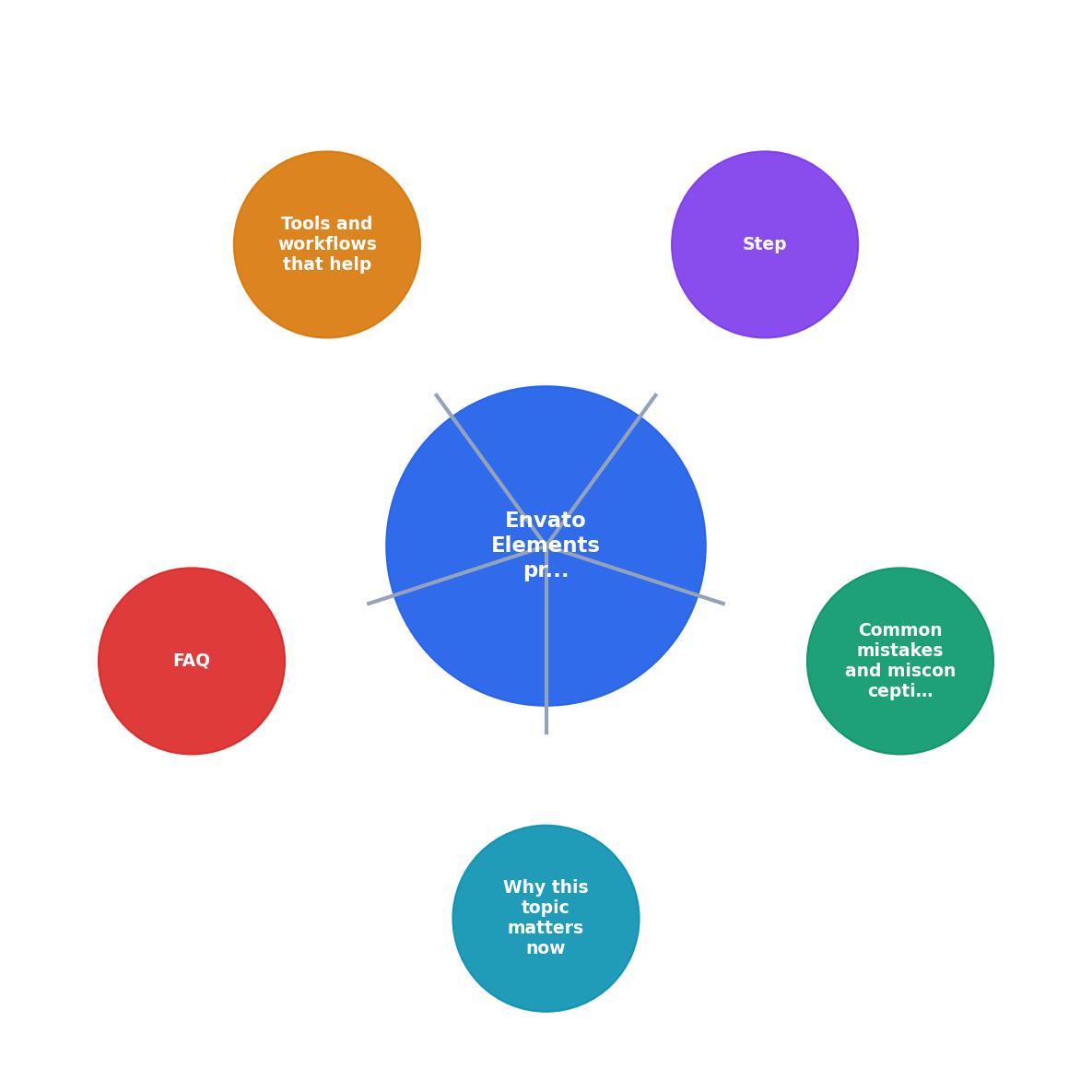
Tools and workflows that accelerate collection

Manual collection works if you download a few items per month. But if you're a designer or agency pulling 10+ items weekly, the manual approach becomes a bottleneck. Dedicated licence management tools solve this by automating the collection, organization, and export of your proof across all platforms.
Licence Downloader does exactly this for Envato Elements and other stock platforms. Instead of logging in to Envato's dashboard monthly, you connect your account once. The tool automatically pulls your full download history, timestamps, and licence terms, then stores them in a centralized archive. You can export reports by project, date range, or platform. When a client asks for proof, you generate a report in seconds.
The time savings add up fast. Manual collection for 200 downloads takes 30–45 minutes. An automated tool does it in the background and updates continuously.
For freelancers managing one or two Envato subscriptions, manual collection is still feasible. For agencies with multiple team members, shared accounts, and hundreds of downloads per month, automation is non-negotiable.
Cloud storage strategy
Store your exported PDFs and licence records in a cloud service like Google Drive, Dropbox, or OneDrive. Use a consistent naming convention: "Envato_Elements_Downloads_[Month-Year].pdf". This makes it easy to find records from a specific period. Set up automatic daily backups so you never lose your proof if your computer crashes.
Client delivery
When delivering assets to a client, include a simple licence summary: "All stock images, fonts, and templates in this deliverable are licensed under Envato Elements. Proof of licence is available upon request." This shifts the conversation from "prove you have the right to use this" to "here's your professional hand-off."
Organizing your log for audit readiness

Your progress is saved automatically in your browser.
- Item name
- Download date
- Item category (font, photo, template, etc.)
- Project or client name
- File location (where you stored the downloaded file)
- Notes (e.g., "used in Q2 2024 campaign")
Update it monthly. When you download new items, add them to the log immediately. It takes 30 seconds per item and saves hours of digging later.
For agencies, share this spreadsheet with your team via a shared cloud folder. Everyone knows where the licence proof lives. When a project ends or a team member leaves, the proof doesn't walk out the door.
Audit-Ready Checklist
This dashboard shows the five components of an audit-ready licence log. If you have all of these in place, you're protected. When a client's legal team or a platform dispute team requests proof of licence, you hand over a clean, timestamped record. No fumbling. No excuses. No exposure.
FAQ
Frequently Asked Questions
What should you do next?
Start by logging into your Envato Elements account today and taking a single screenshot of your download history. Store it in a folder you create for licence records. Add your most recent Envato subscription invoice to that folder. You now have the foundation of a licence log. Next month, take another screenshot. After three months, you'll have a pattern and a backup trail. After a year, you'll have a comprehensive, audit-ready record that took minimal effort to maintain.
The goal isn't perfection. It's having proof when you need it. Small, consistent action now prevents stress and legal exposure later.
Additional Resources
- Envato Elements License – Envato Support | Help Center - proof licensing, To license and use an Item, you must have a valid and active subscription for Envato Elements.
- Envato Elements License FAQ - You can access and download a license certificate for your project at any time on the 'My Downloads' page.
- Envato item license certificate - Go to the item's page on Envato Elements. · Click the Licenses button on the item page to view existing licenses for that item or create a new ...
Need to Download Your Licences?
Save hours of manual work. We download all your stock photo licence certificates for you.
Get Started“Thanks to LicenceDownloader.com, I was able to download more than 1,000 Freepik licences and receive them all at once via ZIP.”
Marlon Mainardy