How to Find Your Licences on Pond5
You bought a video clip or music track on Pond5 for your online store, and now someone is asking you to prove you actually licensed it. The confirmation email is gone, your inbox is a mess, and you have no idea where Pond5 keeps the actual licence document. This guide walks you through every step to locate, download, and organize your Pond5 licences so you always have proof ready when you need it.

You bought a video clip or music track on Pond5 for your online store, and now someone is asking you to prove you actually licensed it. The confirmation email is gone, your inbox is a mess, and you have no idea where Pond5 keeps the actual licence document. This guide walks you through every step to locate, download, and organize your Pond5 licences so you always have proof ready when you need it.
TL;DR:- Log in to your Pond5 account and go to My Downloads to see every asset you have purchased.
- Each downloaded item has a licence agreement tied to it that you can save as a PDF.
- Store these PDFs in a dedicated folder (local or cloud) so you can respond to any copyright question in minutes, not hours.
Why Pond5 Licences Matter
Pond5 is a stock media marketplace that sells video footage, music, sound effects, and images. When you buy something on Pond5, you receive a licence agreement that spells out exactly what you can do with that asset. This document is your legal shield.
Without it, a copyright claim on your Facebook ad or product listing becomes your word against theirs. With it, you have a one-page answer.
That number should worry you. Most small-business owners buy stock media, use it across ads and product pages, and never save the licence. Then a takedown notice arrives and the scramble begins.
The good news: Pond5 stores your licence history inside your account. You just need to know where to look.
How Pond5 Organizes Purchases
Pond5 ties every purchase to your account, not to a single email receipt. Here is how the structure works:
- Account dashboard - Your central hub after logging in at pond5.com.
- My Downloads - A chronological list of every asset you have ever downloaded, including the licence type.
- Order history - Receipts and invoices for each transaction, accessible from account settings.
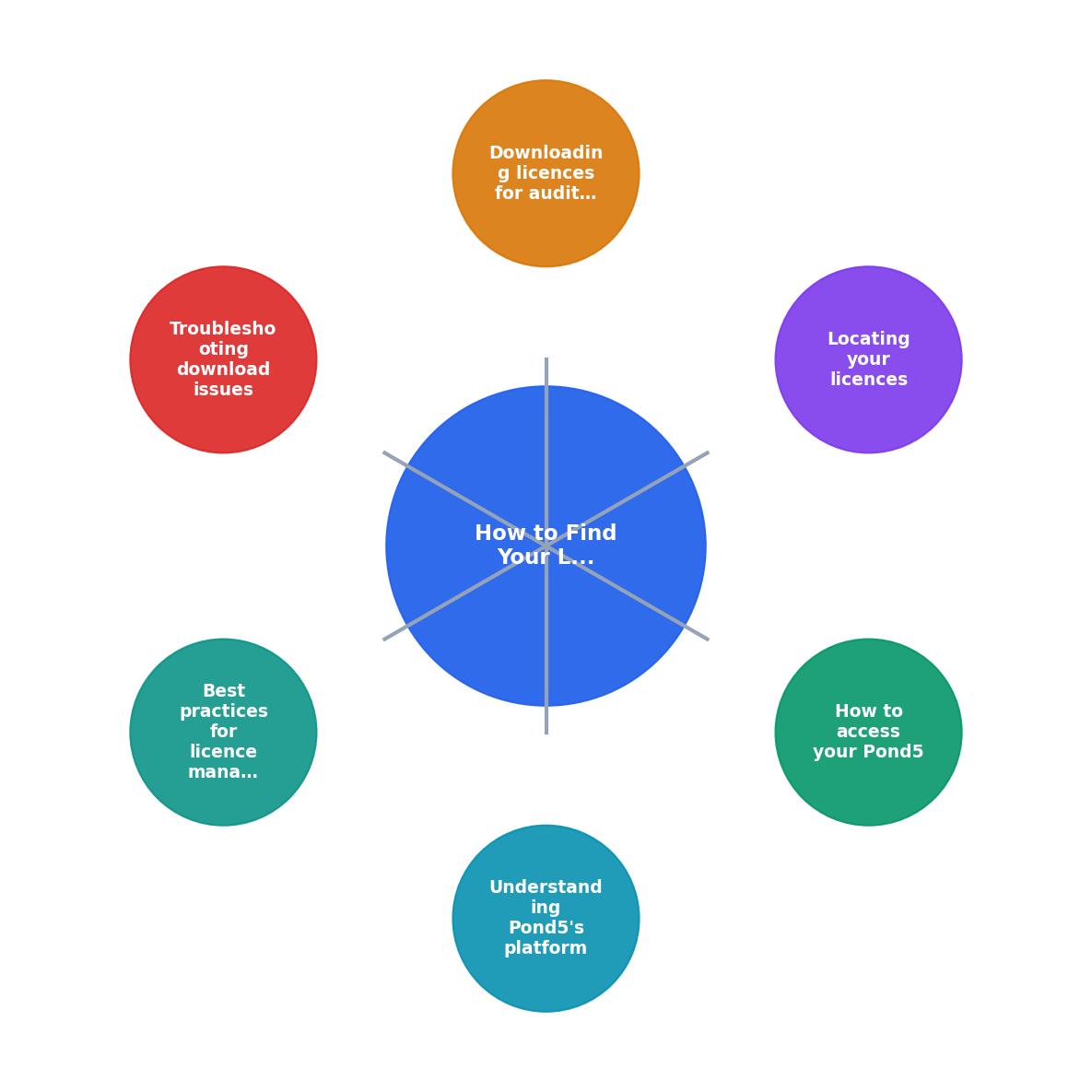
Step-by-Step: Find and Download Your Licences
This is the core process. Follow these steps exactly and you will have your licence PDFs within minutes.
1. Log In to Pond5
Go to pond5.com and click Log In in the top-right corner. Use the email and password you registered with. If you signed up through Google or Facebook authentication, use that same method.
2. Open My Downloads
Once logged in, click your profile icon and select My Downloads from the dropdown menu. This page lists every asset tied to your account.
3. Locate the Asset
Scroll through the list or use the search bar at the top of the downloads page. You can filter by:
- Media type (video, music, SFX, photos)
- Date range (helpful if you remember roughly when you bought it)
- Keywords from the original asset title
4. Access the Licence
Click on the specific asset. On the detail view, look for a Download Licence or View Licence link. This opens or downloads a PDF containing your licence agreement, the asset ID, purchase date, and the licence scope.
5. Save the PDF
Download the PDF to a dedicated folder. Name it something searchable, like pond5-licence-12345678-beach-sunset.pdf where the number is the Pond5 item ID.
Following this process takes about two minutes per licence. Searching through years of email confirmations for the same information? That can eat an entire afternoon.
Troubleshooting Common Issues

Sometimes things do not go smoothly. Here are the most common problems and how to fix them:
- "I can't find the asset in My Downloads." Check that you are logged into the correct account. If you have multiple Pond5 accounts (personal and business), the purchase lives under whichever account you used at checkout.
- "The licence PDF won't download." Try a different browser. Some ad blockers interfere with Pond5's download links. Disable your ad blocker temporarily and try again.
- "I bought through a Pond5 subscription, not individual purchase." Subscription downloads still appear in My Downloads. The licence type will show as your subscription tier rather than a one-off Standard or Enhanced licence.
- "My account was deleted or I forgot my credentials." Contact Pond5 support at support@pond5.com with your original purchase email. They can help you recover access or provide licence documentation directly.
Organize Your Licences for Audits

Downloading the licence is only half the job. You need a system so you can actually find it six months from now when a marketplace flags your listing or an ad platform asks for proof.
Here is a simple folder structure that works:
/licences
  /pond5
    pond5-licence-12345678-beach-sunset.pdf
    pond5-licence-87654321-upbeat-music.pdf
  /shutterstock
  /canva
  /freepik
Keep one top-level licences folder with subfolders per platform. Inside each subfolder, use the naming convention: platform-licence-assetID-short-description.pdf.
Back this folder up to a cloud service like Google Drive, Dropbox, or OneDrive. If your computer dies, your proof of licence should survive.
For businesses with dozens or hundreds of assets across multiple platforms, a tool like Licence Downloader can pull licence documents from Pond5 and other stock platforms in bulk, saving you from repeating this manual process for every single file.
Here is an example of what a well-organized licence tracker looks like for a typical small e-commerce business with around 30 stock assets:
Licence Tracker Dashboard
| Manual Licence Retrieval | Organized System |
|---|---|
| Search email for 20 minutes per asset | Open folder, find PDF in seconds |
| Risk missing deleted emails | Cloud-backed, always available |
| No consistent naming | Standardized filenames with asset IDs |
| Panic during audits | Calm, instant response |
Best Practices for Pond5 Licence Management
A few habits will keep you out of trouble long-term:
- Download the licence the same day you buy the asset. Do not wait. It takes 30 seconds while the purchase is fresh.
- Include the Pond5 item ID in the filename. This is the unique number Pond5 assigns to every asset. It makes searching trivial.
- Keep a simple spreadsheet mapping each asset to where you used it (which product listing, which ad campaign, which social post). If a claim comes in about a specific image on your website, you can trace it back to the licence in one lookup.
- Review your licence folder quarterly. Spend 15 minutes every three months confirming that new purchases have been added. Gaps are easier to fill when they are recent.
- Know your licence type. Pond5 Standard licences cover most commercial uses, but there are restrictions on resale and large-scale distribution. If you are printing an image on merchandise, check whether you need an Enhanced licence.
Pond5 Licence Download Checklist
Your progress is saved automatically in your browser.
FAQ
Frequently Asked Questions
What does your current licence filing system look like? If you have a method that works well for keeping Pond5 or other stock media licences organized, share it in the comments below.
Additional Resources
- How to Choose the Right Royalty-Free License on Pond5 - Pond5 offers four different kinds of royalty-free licenses. If you need help selecting the right license, call +1 (855) 410-6789 or email licenses@pond5.com ...
- Pond5 Content License Agreement - For information about Business Licenses or Premium Licenses, contact us at sales@pond5.com.
- Questions about licensing - Audio - If I put my video on Youtube how is it determined who is the licensee? What if I purchase audio Content here on Pond 5, make a video clip, but ...
Need to Download Your Licences?
Save hours of manual work. We download all your stock photo licence certificates for you.
Get Started“Thanks to LicenceDownloader.com, I was able to download more than 1,000 Freepik licences and receive them all at once via ZIP.”
Marlon Mainardy