How to Export Freepik Licence Certificates Before an Audit
An audit request just landed in your inbox, and now you need proof that every Freepik asset in your portfolio was properly licensed. The problem is that Freepik buries licence certificates deep inside your account, and downloading them one by one for dozens or hundreds of assets takes hours you do not have. This guide walks you through the exact steps to export your Freepik licence certificates quickly, whether you have ten downloads or a thousand.

An audit request just landed in your inbox, and now you need proof that every Freepik asset in your portfolio was properly licensed. The problem is that Freepik buries licence certificates deep inside your account, and downloading them one by one for dozens or hundreds of assets takes hours you do not have. This guide walks you through the exact steps to export your Freepik licence certificates quickly, whether you have ten downloads or a thousand.
Photo by Wolfgang Weiser from Pexels
TL;DR:- Log into your Freepik account, navigate to your download history, and export the licence certificate PDF for each asset you need to document.
- For bulk exports, use a tool like Licence Downloader to pull hundreds of certificates at once instead of clicking through them individually.
- Store exported certificates in a single folder, named by project or client, so they are ready the moment an auditor asks.
Why licence certificates matter
Freepik grants you a licence the moment you download an asset. That licence is your legal proof that you paid for and are authorized to use the image, vector, or PSD in commercial work. Without the certificate, you have no documentation. And "I definitely downloaded it from Freepik" does not hold up when a client's legal team or a copyright enforcement agency comes knocking.
A surprising number of freelance designers keep zero organized records of their stock licences. They rely on browser history, email receipts, or memory. That works until it does not.
"Most people don't think about their licence certificates until something goes wrong.">, Medium
The cost of a single unproven licence during an audit can range from a takedown notice to a four-figure settlement demand. Exporting your certificates before that happens is cheap insurance.
Common mistakes to avoid

Before jumping into the export process, here are the traps that catch people off guard:
- Assuming the invoice is the licence. Your Freepik payment receipt proves you paid. It does not prove which specific assets you licensed or under what terms. The licence certificate is a separate document tied to each individual download.
- Waiting until the audit starts. Freepik's download history is available while your subscription is active. If your plan lapses or you switch accounts, accessing old certificates gets complicated fast.
- Saving certificates without file-name context. A folder full of
licence_12345.pdffiles is useless if you cannot match each certificate to the asset used in a specific client project. - Relying on screenshots. A screenshot of your Freepik downloads page is not an official certificate. Auditors and legal teams want the actual PDF document Freepik generates.
- Ignoring free downloads. Assets downloaded under Freepik's free tier still come with licence terms (attribution required). You need proof of those licences too, especially if you used them commercially.
Getting your certificates exported and organized puts you at roughly 85% audit readiness. The remaining 15% is matching each certificate to the project where the asset was used.
Step-by-step export process
Here is the exact workflow to export your Freepik licence certificates manually, followed by the faster bulk method.
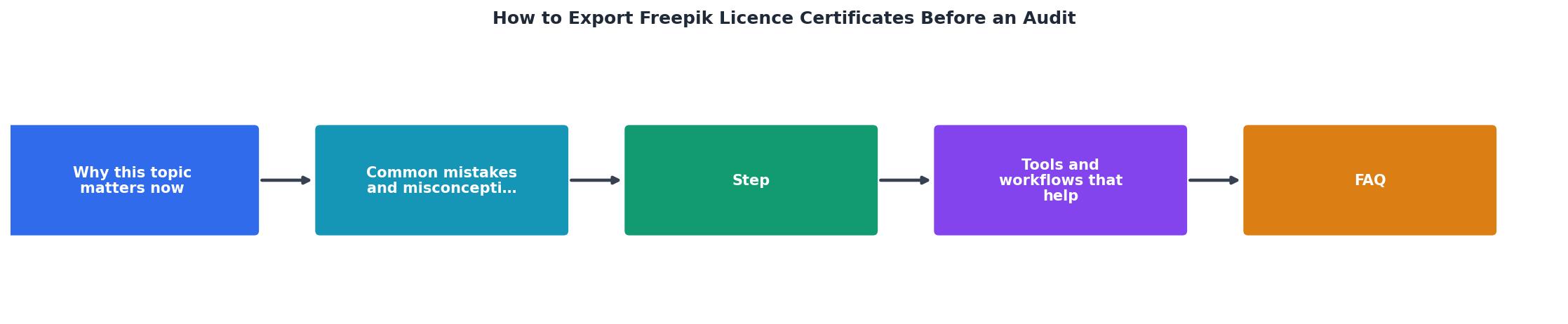
Manual export (small batches)
- Log in to your Freepik account at freepik.com.
- Open Downloads by clicking your profile icon and selecting "Downloads" from the dropdown menu.
- Locate the asset you need a certificate for. Use the search bar or scroll through your history. Freepik shows thumbnails, download dates, and licence types.
- Click the licence icon next to the asset. On the downloads page, each item has a small document or certificate icon. Clicking it opens or downloads the licence certificate as a PDF.
- Save the PDF with a meaningful filename. Instead of the default name, rename it to something like
freepik-licence-clientname-projectname-assetID.pdf. - Repeat for every asset you need to document.
Bulk export with Licence Downloader
When you have dozens or hundreds of Freepik downloads to document, the manual approach breaks down. This is where licencedownloader.com saves real time. The tool connects to your Freepik account, scans your full download history, and pulls every licence certificate in one batch. You get a folder of properly named PDFs ready for an auditor.
The process looks like this:
- Connect your Freepik account to Licence Downloader.
- Scan your download history. The tool identifies every asset and its licence type.
- Select which certificates to export (all, or filter by date range or licence type).
- Download the batch. Certificates arrive as individual PDFs in a single ZIP file.
- Organize by moving certificates into your project folders.
Here is an example of what a typical freelancer's export dashboard might look like after connecting their Freepik account:
Freepik Licence Export
Example: freelancer with 2 years of downloads
Organizing certificates for audits

Exporting certificates is half the job. The other half is organizing them so you can actually find the right one when asked. Here is a folder structure that works:
/licences
  /freepik
    /2025-clientname-project
      freepik-licence-12345.pdf
      freepik-licence-12346.pdf
    /2026-clientname-campaign
      freepik-licence-23456.pdf
Name folders by year, client, and project. When an auditor asks "show me the licence for the hero image on the Smith & Co website redesign," you open one folder and hand over the PDF. No searching, no guessing.
A few additional tips:
- Back up to cloud storage. Keep a copy in Google Drive, Dropbox, or your agency's shared drive. Local-only storage is one hard drive failure away from disaster.
- Add a spreadsheet index. A simple CSV or Google Sheet mapping asset ID to project name, client, and usage location makes large archives searchable.
- Export quarterly, not annually. Waiting twelve months means a bigger, more stressful export session. Quarterly exports keep the task small and manageable.
| Manual Export | Bulk Export (Licence Downloader) |
|---|---|
| 2-3 minutes per certificate | Seconds per certificate |
| Click-by-click in browser | Automated batch download |
| Easy to miss assets | Scans full download history |
| No consistent naming | Auto-named PDF files |
| Works for 5-10 assets | Scales to hundreds or thousands |
Pre-Audit Freepik Licence Export Checklist
Your progress is saved automatically in your browser.
FAQ
Frequently Asked Questions
Additional Resources
- How to download Freepik and Flaticon licenses? - you can download the licenses from the Downloads tab of your account. To access this, open the main sidebar. Hover over “Stock” and then click “Downloads” from ...
- How I Downloaded Almost 1000 Freepik Licenses At Once - Licence Downloader grabs every single licence certificate from your stock photo account and delivers them as an organized ZIP archive. It ...
- Audit certification Images - Free Download on ... - Find & Download Free Graphic Resources for Audit certification Vectors, Stock Photos & PSD files. ✓ Free for commercial use ✓ High Quality Images.
Need to Download Your Licences?
Save hours of manual work. We download all your stock photo licence certificates for you.
Get Started“Thanks to LicenceDownloader.com, I was able to download more than 1,000 Freepik licences and receive them all at once via ZIP.”
Marlon Mainardy