Licence proof playbook #4: Adobe Stock proof checklist
A client emails you three months after a project wraps asking for proof that the hero image on their landing page is properly licensed. You know you bought it on Adobe Stock, but the licence certificate is buried somewhere in your account, and the download history goes back hundreds of assets. This guide gives you a concrete, repeatable checklist for locating, downloading, and organizing Adobe Stock licence proof so you never scramble through that situation again.

A client emails you three months after a project wraps asking for proof that the hero image on their landing page is properly licensed. You know you bought it on Adobe Stock, but the licence certificate is buried somewhere in your account, and the download history goes back hundreds of assets. This guide gives you a concrete, repeatable checklist for locating, downloading, and organizing Adobe Stock licence proof so you never scramble through that situation again.
Photo by Sóc Năng Động from Pexels
TL;DR:- Adobe Stock licence proof lives in your Licence History page, not in the download folder or your invoice.
- Each licensed asset has a downloadable licence certificate (PDF) that ties the asset ID to your Adobe account.
- A simple five-step workflow (locate, download, rename, store, verify) keeps you audit-ready at all times.
- For bulk retrieval across hundreds of assets, tools like Licence Downloader cut the process from hours to minutes.
Why Adobe Stock proof matters
Stock licence disputes are not hypothetical. Copyright holders and automated detection services scan the web constantly. When a match triggers a claim, the burden of proof falls on you. An invoice alone does not prove which specific asset you licensed or under what terms. Adobe Stock provides per-asset licence certificates for exactly this reason, but most freelancers never download them until a problem arrives.
The gap between buying an asset and storing its proof creates real risk. A single unresolved copyright claim can cost anywhere from a few hundred dollars in settlement fees to thousands in legal costs. Keeping licence certificates organized is not busywork. It is professional insurance.
Common mistakes that cost time

Three mistakes show up repeatedly when freelancers try to prove Adobe Stock licences:
- Confusing invoices with licence certificates. Your Adobe subscription invoice proves you paid for a plan. It does not list individual asset IDs or licence terms. These are separate documents.
- Relying on the Downloads folder. The JPEG or PNG you downloaded is the asset, not the proof. If someone questions your right to use it, the file itself proves nothing.
- Assuming Adobe keeps everything accessible forever. Adobe retains licence history, but navigating it after hundreds of downloads becomes painful. The interface paginates, and there is no native bulk-export option for certificates.
A recurring frustration from the Adobe community captures this well:
", I can see that the image is licensed but can't find an option to download a physical license.">, Help Stock license proof
That confusion is exactly what this checklist solves.
Five-step Adobe Stock proof workflow

Here is the process broken into five clear steps. Each one maps to the diagram below.
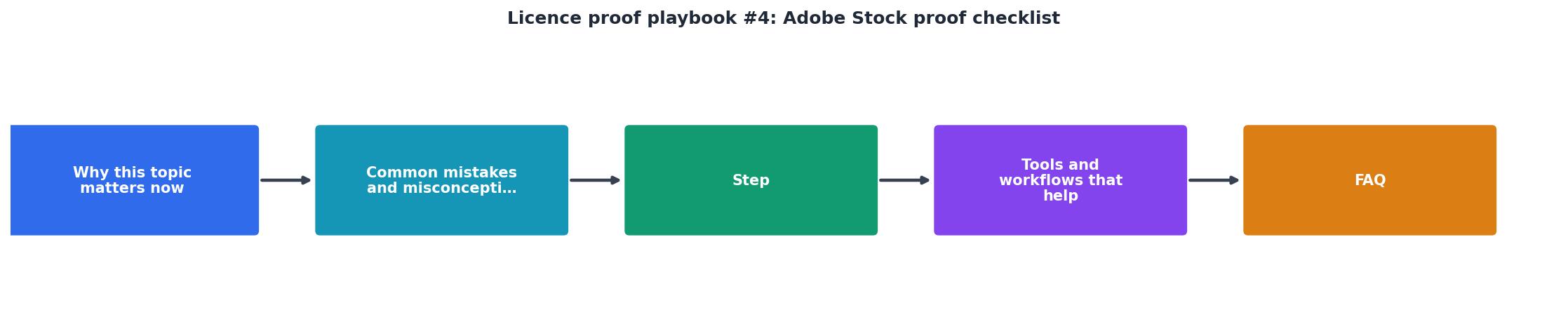
Step 1: Locate your licence history
Log in to stock.adobe.com. Click your profile icon in the top-right corner, then select Licence history from the dropdown. This page lists every asset you have ever licensed under your account, with the asset thumbnail, title, licence date, and asset ID.
Step 2: Download individual certificates
For each asset, click the licence info icon (the small "i" or document icon next to the asset). Adobe generates a licence certificate that includes:
- Your Adobe ID / account email
- The asset ID and title
- The licence type (Standard or Enhanced)
- The licence date
- Permitted uses summary
Ctrl + P on Windows, select "Save as PDF").
Step 3: Rename with a consistent convention
Raw filenames from Adobe are not descriptive. Rename each certificate using a pattern like:
AdobeStock_[AssetID]_[ProjectName]_[Date].pdf
Example: AdobeStock_482917365_ClientXYZ-Homepage_2026-03.pdf
This makes searching by asset ID, client, or date instant.
Step 4: Store in a structured folder
Create a folder structure that mirrors your projects:
/Licences
  /Adobe-Stock
    /2026
      /ClientXYZ-Homepage
        AdobeStock_482917365_ClientXYZ-Homepage_2026-03.pdf
      /ClientABC-SocialPack
        AdobeStock_119283746_ClientABC-SocialPack_2026-04.pdf
Back this up to cloud storage (Google Drive, Dropbox, OneDrive). A local-only copy is one hard drive failure away from gone.
Step 5: Verify completeness
Cross-reference your licence folder against your Adobe Stock licence history page. Every asset in your history should have a matching certificate in your folder. Do this monthly if you download frequently, or at project close if you work in bursts.
Scaling with the right tools

The manual process works fine if you license ten or twenty assets a month. Once you cross into the hundreds, clicking through each asset individually becomes unsustainable.
| Manual Download | Bulk Tool (e.g., Licence Downloader) |
|---|---|
| Click each asset one by one | Select date range, export all |
| ~2 minutes per certificate | Seconds per batch |
| Easy to miss assets | Automated completeness check |
| No consistent naming | Configurable naming patterns |
| Works for small volumes | Scales to thousands of assets |
Here is an example dashboard showing what a typical freelancer's monthly licence collection might look like after running a bulk export:
Monthly Licence Export Summary
Standard vs Enhanced licence proof
Not all Adobe Stock licences are equal, and your proof needs to reflect the correct type.
- Standard licence: Covers most commercial uses (web, social, print up to 500,000 copies). This is what your subscription plan includes by default.
- Enhanced licence: Required for merchandise, templates for resale, or print runs above 500,000. Purchased separately at a higher per-asset cost.
Adobe Stock proof checklist
Adobe Stock Licence Proof Checklist
Your progress is saved automatically in your browser.
FAQ
Frequently Asked Questions
What does your current licence filing system look like, and where does it break down? Share your approach in the comments.
Additional Resources
- Help Stock license proof - Hi everyone,I’ve received a message from Copytrack regarding an image I used, claiming that it’s not properly licensed. I’d like to provide proof ...
- License (proof) - where can I get it? - You can get the proof of your purchase(file ID, license type) from your license history as shown in the screenshot below Sign in with your ...
- Need Proof of License for Image Downloaded from Adobe ... - Hello Adobe Stock Community and Support, I need help with a licensing issue. In September 2023, while I was in Turkey, I licensed and downloaded an image ...
Need to Download Your Licences?
Save hours of manual work. We download all your stock photo licence certificates for you.
Get Started“Thanks to LicenceDownloader.com, I was able to download more than 1,000 Freepik licences and receive them all at once via ZIP.”
Marlon Mainardy