Adobe Stock certificate export steps before a deadline
When a client asks for proof that you licensed an image, or your legal team needs audit documentation, Adobe Stock certificates become critical. Most creators don't know where to find them, and fewer still understand the best way to export them before a deadline hits. This guide walks you through the exact steps to locate, download, and organize your Adobe Stock certificates so you're never caught unprepared.



When a client asks for proof that you licensed an image, or your legal team needs audit documentation, Adobe Stock certificates become critical. Most creators don't know where to find them, and fewer still understand the best way to export them before a deadline hits. This guide walks you through the exact steps to locate, download, and organize your Adobe Stock certificates so you're never caught unprepared.
TL;DR:- Log into your Adobe Stock account, navigate to your Downloads or License History section, and export certificates one at a time or in bulk using Adobe's export tools.
- Download certificates immediately after purchase when details are fresh in Adobe's system.
- Store certificates in a centralized folder with a consistent naming scheme tied to your project names or asset IDs.
- Use Licence Downloader to automate bulk certificate collection across multiple Adobe Stock accounts and platforms.
Why Adobe Stock certificates matter right now
Adobe Stock is one of the most popular platforms for freelance designers and agencies. Millions of images are licensed daily, but ownership proof lives only in your Adobe account. When a client, marketplace platform, or legal team asks "do you have the right to use this image?", your certificate is your answer.
The problem: Adobe doesn't make certificates obvious. They're buried in account settings, exported as PDFs one at a time, and easy to lose track of. If your deadline is tomorrow and you need 50 certificates, manually clicking through Adobe's interface becomes a bottleneck. Worse, if you've lost access to your original account or the image has been deleted, proving historical ownership becomes nearly impossible.
This matters because copyright disputes are real. Platforms like Etsy, Shopify, and Canva remove listings based on DMCA claims. If you can't prove you licensed an image, you lose both the asset and potentially face liability. Agencies face even higher stakes: a client audit or legal discovery request can require hundreds of certificates across dozens of projects.
Common mistakes that cost time
Many creators and teams make predictable errors when handling Adobe Stock certificates:
Assuming you don't need them yet. You think "I'll grab the certificate when a client asks." But Adobe's export interface changes over time, images get delisted, and your account may have limited history visible after 90 days. Proactive download is always safer.
Downloading without organizing. You export a PDF but save it as "certificate.pdf" or leave it in your Downloads folder. Six months later, you can't match it to a project. A simple naming convention saves hours of detective work.
Relying on Adobe's account history alone. Adobe's interface doesn't guarantee permanence. Account access issues, upgrades, or deletions can affect visibility. Your local copy is the insurance policy.
Bulk-downloading but forgetting to verify. You export 100 certificates but never confirm they're all there or readable. When you need one, you discover the export was incomplete.
Not checking the certificate type. Adobe Stock certificates come in different formats depending on your subscription (Standard, Extended, Premium). The certificate's fine print matters. Some uses require an Extended licence; a Standard certificate won't cover everything.
Step-by-step approach to export
Access your Adobe Stock dashboard

Start by logging into your Adobe Stock account at stock.adobe.com. If you use a Creative Cloud account, use the same email and password. Navigate to the account icon (usually top-right corner) and select Downloads or License History, depending on your account type.
In the Downloads section, you'll see a list of images you've licensed. Each row shows the image thumbnail, the filename, the date you downloaded it, and, crucially, an option to download the certificate. Some accounts display a Download Certificate link directly. Others require you to click the three-dot menu and select the certificate option.
If you don't see Downloads or License History, check under Account Settings > My Licenses or Order History. Adobe's interface varies slightly by subscription type (single-image purchase vs. monthly plan vs. annual credits), but the principle is the same.
Locate your certificate for a specific image

Find the image you want to export. You can scroll through the list or use the search bar to filter by filename or asset ID (the unique number Adobe assigns each image).
Once you've located it, look for the certificate action. Click Download License Certificate or the equivalent option (sometimes labeled Export Certificate or Get Certificate). A PDF file will download to your default Downloads folder. The filename typically follows the pattern [adobe-stock-id]-license-certificate.pdf.
If you're on a team or agency account, you may need to verify permissions. Some accounts restrict certificate export to account owners or admins. If the option is grayed out, check with your account administrator.
Download the process diagram
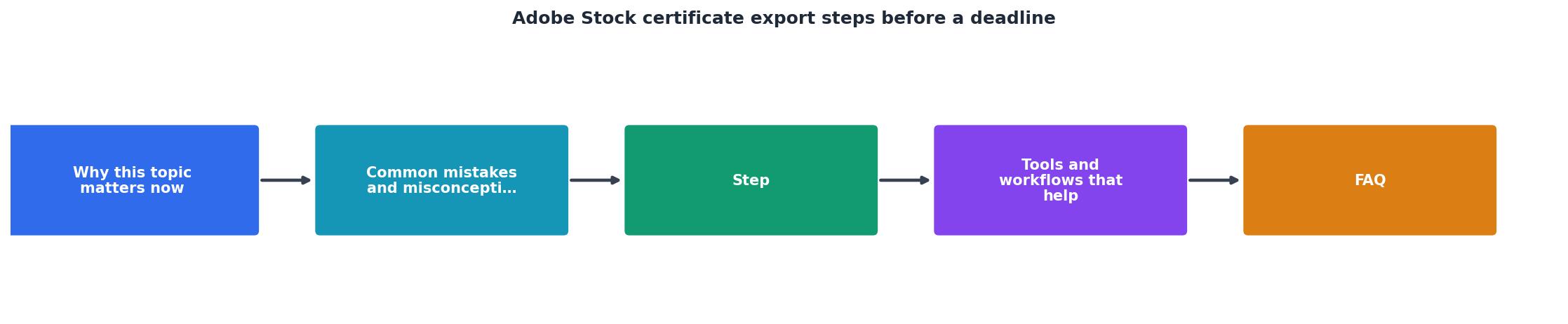
The diagram shows the full flow: login → navigate to Downloads → search for image → download certificate → store and organize. The key decision point is bulk vs. single. If you need one or two certificates, the single-download flow takes 90 seconds per certificate. If you need 20 or more, a bulk-download tool saves hours.
Bulk export for multiple images
Adobe Stock's native interface doesn't offer one-click bulk export of all certificates at once. Your options:
Manual batch approach: Open multiple browser tabs, one certificate per tab, download all PDFs simultaneously. This works for 5–10 certificates but becomes tedious beyond that.
Third-party automation: Services and scripts exist to automate Adobe Stock certificate collection. Licence Downloader is specifically designed for this, supporting Adobe Stock alongside Freepik, Shutterstock, Envato, and other platforms. It logs into your account, iterates through your entire license history, and downloads all certificates to a local folder with consistent naming.
CSV export: Some Adobe accounts allow exporting a CSV of license history. You can then use this as a reference list to download certificates programmatically or manually in batches.
For teams managing hundreds of assets across multiple accounts, automation is non-negotiable.
Naming and storage strategy

Once downloaded, immediately rename and organize your certificates. A chaotic Downloads folder is useless when you need proof in five minutes.
Use a naming scheme that ties to your workflow:
[Project Name]_[Asset ID]_[Image Description].pdf(e.g.,Brand-Refresh-2026_12345678_Hero-Header.pdf)[Client Name]_[Date]_[Adobe Stock ID].pdf(e.g.,ACME-Corp_2026-01-15_87654321.pdf)[Campaign]_[Platform]_[License Type].pdf(e.g.,Spring-Sale_Instagram_Standard.pdf)
/Certificates/
  /Clients/
    /Client-A/
      /Project-1/
      /Project-2/
  /Stock-Platforms/
    /Adobe-Stock/
    /Freepik/
    /Shutterstock/
Use cloud storage (Google Drive, Dropbox, OneDrive) so certificates are backed up and accessible to your team.
Tools and workflows that help
Adobe Stock's native export options
Adobe Stock's built-in certificate download is straightforward but manual. It works well for small, infrequent purchases. The certificate includes the asset ID, file size, license type (Standard or Extended), usage terms, and expiration date (if applicable). Everything you need for proof.
The limitation: no bulk download button. You export one certificate per action, which scales poorly.
Bulk certificate management tools
Licence Downloader automates the entire process. It integrates with your Adobe Stock account (and Freepik, Shutterstock, Envato, Canva, and others), logs in on your behalf, and exports all your certificates in one batch. It handles:
- Multi-account management (useful for agencies with several Adobe Stock seats)
- Consistent naming and file organization
- Deduplication (if you've licensed the same image twice, it detects it)
- Scheduled exports (run nightly or weekly to stay current)
Spreadsheet tracking
Keep a simple Google Sheets or Excel file alongside your certificates. Columns: Image Name, Asset ID, Platform, License Type, Download Date, Project Used In, Client, Notes. This becomes your lookup table. Search for an asset name, find its ID, and immediately locate the matching certificate file.
Version control for designers
If you use Git or version control for project files, consider adding a /certificates folder to your repository. When you update a design, commit the matching certificate. This creates an audit trail of what assets were licensed when.
Interactive dashboard example
To help visualize how licence management works at scale, here's an example dashboard showing what a typical freelancer or small team might track:
Example: Licence Inventory Dashboard
This example shows a typical freelancer's inventory: 156 total Adobe Stock licences with 100% of certificates downloaded and organized. The split between Standard (122) and Extended (34) licences is important because Extended licences cover more uses (merchandise, resale, large-format print). When a client asks what they can do with an image, the licence type determines the answer.
Progress on certificate completion
Reaching 100% certificate coverage means every image you've licensed has a matching certificate stored and indexed. Most teams operate at 40-60% until they feel the pain of a missing certificate during an audit. Once they implement a system, they quickly hit 85-95%. Full 100% requires discipline and automation.
FAQ
Frequently Asked Questions
Checklist: Export and organize your Adobe Stock certificates
Adobe Stock Certificate Export Checklist
Your progress is saved automatically in your browser.
Start your certificate collection today
Adobe Stock certificates are your legal proof. Waiting until a client or platform demands them is gambling. Five minutes of setup now, downloading a batch of certificates and organizing them into a simple folder structure, saves you hours during an audit or dispute.
The shift to using tools like Licence Downloader for bulk management is a no-brainer if you license more than a handful of images per month. One click, one automated folder, one peace of mind.
What's your current certificate storage system, and what's the biggest bottleneck you face when proving image ownership?
Sources
Create a new data exportNeed to Download Your Licences?
Save hours of manual work. We download all your stock photo licence certificates for you.
Get Started“Thanks to LicenceDownloader.com, I was able to download more than 1,000 Freepik licences and receive them all at once via ZIP.”
Marlon Mainardy