iStock certificate export steps before a deadline
When a client asks for proof that you licensed an image legally, you need that certificate fast. iStock stores your licence proof deep in account dashboards, and finding it under pressure is frustrating. This guide walks you through exactly where to look, how to download your certificates before a deadline hits, and what to do if you can't find them.


When a client asks for proof that you licensed an image legally, you need that certificate fast. iStock stores your licence proof deep in account dashboards, and finding it under pressure is frustrating. This guide walks you through exactly where to look, how to download your certificates before a deadline hits, and what to do if you can't find them.

TL;DR
- iStock licence certificates live in your account downloads history, not in a separate "certificates" folder.
- Export them by visiting Account > Downloads > Download History, selecting the image, and clicking View License Certificate.
- Certificates can take 24–48 hours to generate after purchase; plan ahead if you have a tight deadline.
- Save certificates as PDFs immediately after download, iStock links expire after 30 days.
- Use Licence Downloader to bulk-export all your iStock certificates at once, cutting manual work from hours to minutes.
Most creators don't think about licence certificates until they need them. A client's lawyer asks, "Do you own that image?" and suddenly you're scrambling through your account at 11 p.m. on a Friday. iStock makes this harder than it should be because licences aren't displayed prominently, you have to know where to dig. The good news: once you know the system, the process takes less than five minutes per image.
Where iStock keeps your certificates

iStock doesn't give you a dedicated certificates section in your account. Instead, your licence proof is attached to each individual image in your Download History. This is the biggest point of confusion: people look for a "Certificates" or "Licences" tab that doesn't exist.
Here's the reality: every time you download an image on iStock, the system logs that transaction and ties it to a downloadable certificate. That certificate proves the date, the image ID, the licence type you paid for, and your account name. But iStock only makes that certificate visible if you know to look in the Download History section.
Think of it like receipts from an online store. Your receipt exists, but it's not mailed to you automatically, you have to log in and ask for it.
The reason iStock structures it this way is to keep your account dashboard clean. If every image showed its own certificate inline, your account would be cluttered. Instead, they hide it behind a click or two.
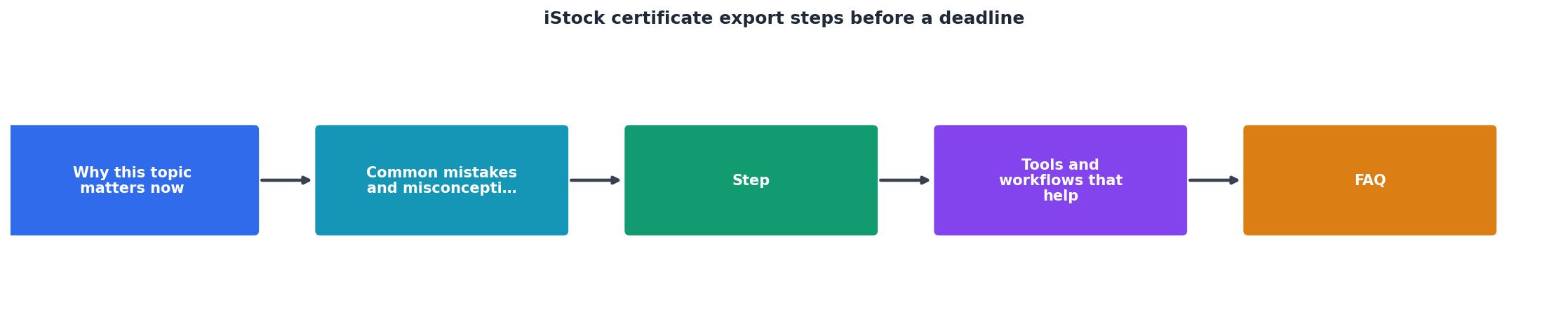
Step-by-step export process
Step 1: Log in and navigate to Download History
Go to istock.com and sign into your account with your email and password. Once you're in, look for your account menu in the top-right corner, it's usually your profile picture or initials. Click it and select Account or My Account.
From there, find the Downloads section in the left sidebar. Click it.
You'll see two tabs: Active Downloads and Download History. Click Download History. This shows every image you've ever downloaded on this iStock account, going back years.
Step 2: Locate the image and view its licence certificate
Scroll through your Download History until you find the image you need to prove. You can filter by date or search by image name if you remember it.
Once you find it, click on the image thumbnail or the row. A details panel will open showing:
- The image ID (a unique number iStock assigns)
- The download date
- The licence type you purchased (Essentials, Signature, Extended, etc.)
- A View License Certificate button or link
Step 3: Download and save the PDF
Do not rely on the browser window. Click the download button in the PDF viewer (usually a down arrow in the top-right) to save it to your computer.
Name the file clearly. Instead of leaving it as a generic PDF, rename it to something like:
iStock_License_[ImageID]_[ImageName]_[Date].pdf
Example: iStock_License_1234567890_sunset-beach-landscape_2026-01-15.pdf
Save it to a folder you've set aside for all your licence certificates. A shared folder on Google Drive or Dropbox is ideal if you work with clients or teammates, they can download the proof if needed.
Step 4: Verify the certificate contains all required details
Before you call it done, open the PDF and confirm it shows:
- Your name or account holder name
- The image ID number
- The download date (matches when you actually got it)
- The licence type (e.g., "Standard License", "Extended License")
- iStock's official seal or branding
- The usage rights (commercial, editorial, resale restrictions, etc.)
Common mistakes that waste time

Looking in the wrong place
Many users search for certificates in My Content, Saved Collections, or Purchases. None of these have licence certificates. The certificate only exists in Download History because iStock ties it to the act of downloading, not to owning or saving the image.
If you never actually downloaded the image (maybe you just previewed it or someone sent it to you), there is no certificate in your account. You'll need to ask whoever purchased it for the proof.
Waiting too long to download
After you download a certificate PDF link, iStock keeps it valid for approximately 30 days. After 30 days, clicking the link again may return a 404 error or an expired-link page.
Some creators think, "I'll grab that certificate when the client asks," and then three months later they can't find it. The link is dead. The workaround is to contact iStock support and ask them to reissue it, which can take 2–5 business days.
Don't do this. Download and save the PDF the moment you suspect you might need it. Storage is free; replacing lost proof is not.
Confusing licence types
iStock offers several licence tiers: Essentials, Signature, Extended. Each has different usage rights, and your certificate will state which one you have.
A common panic is, "I bought a Standard License but the client needs Extended rights." Your certificate won't change, and you can't retroactively upgrade it. You would need to repurchase the image under an Extended License.
Read what you're buying before checkout, or confirm with your client upfront what rights they need.
Not keeping a central archive
If you download certificates randomly into your Downloads folder, you'll never find them when you need them. After a month, your Downloads folder is a mess, and hunting for a specific image's certificate becomes a 20-minute scavenger hunt.
Create a single folder, local or cloud-based, called Stock Licenses or Asset Certificates. Dump every certificate you download into it. Name files consistently. Search works instantly, and you look professional if a client asks for proof.
Exporting bulk certificates before a big deadline

If you're prepping 20, 50, or 100 images for a client audit or a legal review, downloading each certificate manually is torture. Five minutes per image adds up to hours.
The manual way: Log in > Download History > Find image > View Certificate > Download > Repeat. Multiply that by 50 images, and you've lost most of your day.
The better way: Use Licence Downloader to bulk-export all your iStock certificates in one pass. Point it at your iStock account, and it pulls every certificate from your Download History, organizes them, and packages them for you, sometimes in under five minutes.
Why does this matter? When a deadline is tight and you need to prove you licensed every asset in a campaign, manual work is a liability. Automation removes the error, saves the hours, and lets you send a client a complete, organized archive instead of scattered PDFs.
Planning before the deadline hits
If you know an audit or legal review is coming, don't wait until the last day. Pull your certificates two weeks early. This gives you time to:
- Verify the images match what the client used (IDs and dates check out).
- Spot any missing certificates and request replacements from iStock.
- Organize and rename files so they're easy to reference.
- Handle any issues without panic.
Timeline: when certificates appear
One thing that trips people up: iStock doesn't generate your certificate instantly. Here's the real timeline:
- Immediately after purchase and download: You can view and download the certificate.
- If you download again later: The same certificate is available.
- 30 days after download: Links may expire; always save the PDF.
- After 90 days: Some older certificates may require iStock support to retrieve.
"The USDA 'Officially Certified as Stated on the Certificate' Stamp should be used to identify Pallets of Ungraded Eggs and be documented on the LP-210S.">, Export Requirements for Breaking Stock to Canada
Interactive export tracker
To help you visualize the export workflow and track multiple images, here's an interactive dashboard showing what a typical freelancer's iStock certificate collection looks like:
Your iStock Certificate Archive
This example shows a typical freelancer who has downloaded 87 images from iStock and kept certificates for each. Notice that 3 links are expiring soon, those PDFs should be re-downloaded before the 30-day window closes.
Checklist: Before you submit certificates to a client
Your progress is saved automatically in your browser.
FAQ
Frequently Asked Questions
Stock Licenses / [Platform] / [Year] / [Month]. Example: Stock Licenses / iStock / 2026 / January. Name each PDF clearly with the image ID, name, and date. Use a spreadsheet (Google Sheets or Excel) to index your certificates by project or client, so a quick search finds all assets used in a specific campaign. Cloud storage like Google Drive or Dropbox keeps everything accessible from anywhere.The next time a client asks for proof that you licensed an image, you won't panic. You'll know exactly where to find it, how fast you can pull it, and where to store it so it's never lost. The process is simple once you know the system, and that knowledge is what keeps you looking professional under pressure.
Additional Resources
- Your Account FAQs Frequently Asked Questions - Invoices are processed on business days and are available within 1–2 business days of your purchase date. Depending on your location, processing times may be ...
- Export Requirements for Breaking Stock to Canada - This instruction outlines specific requirements that must be met before certifying breaking stock for shipment to Canada.
- Export Compliance Illustrations - Browse 1,000+ export compliance stock illustrations and vector graphics available royalty-free, or search for export control or shipping
Need to Download Your Licences?
Save hours of manual work. We download all your stock photo licence certificates for you.
Get Started“Thanks to LicenceDownloader.com, I was able to download more than 1,000 Freepik licences and receive them all at once via ZIP.”
Marlon Mainardy