Locating Licences on 123RF
A client emails you three months after a project wraps, asking for proof that the hero image on their landing page is properly licensed. You bought it on 123RF, you know that much, but the receipt is buried somewhere in your account and the clock is ticking. This guide walks you through exactly where 123RF stores licence information, how to download it, and how to organize those files so the next time someone asks, you answer in under a minute.


A client emails you three months after a project wraps, asking for proof that the hero image on their landing page is properly licensed. You bought it on 123RF, you know that much, but the receipt is buried somewhere in your account and the clock is ticking. This guide walks you through exactly where 123RF stores licence information, how to download it, and how to organize those files so the next time someone asks, you answer in under a minute.
Photo by Danik Prihodko from Pexels
TL;DR:- Log into your 123RF account and navigate to the Downloads section under your profile menu.
- Each downloaded asset has an associated licence record you can view and save as a PDF or screenshot.
- Organize licences by client or project in a dedicated folder structure so you stay audit-ready without scrambling.
Why 123RF licences matter
Every stock image you download from 123RF comes with a licence agreement that defines what you can and cannot do with that file. That agreement is your legal shield. Without it, a copyright dispute turns into a "your word against theirs" situation, and that never ends well for the freelancer.
123RF offers two main licence types: the Standard Licence (covers most web, social, and print uses up to 500,000 copies) and the Extended Licence (removes copy limits and allows resale on products). Knowing which one you purchased for a specific asset matters when a client's legal team comes knocking.
The good news: 123RF keeps a record of every download tied to your account. The bad news: the platform does not make it obvious where that record lives. Let's fix that.
Accessing your 123RF account

Start at 123rf.com and log in with the email tied to your subscription. If you use multiple accounts (personal and a shared team account, for example), make sure you are in the correct one before hunting for licences.
Once logged in:
- Click your profile avatar in the top-right corner.
- Select My Account from the dropdown.
- You will land on the account dashboard showing your subscription status, remaining downloads, and recent activity.
If you cannot log in because you changed your email or forgot your password, use the "Forgot Password" flow. 123RF sends a reset link within a few minutes. For accounts managed through a team admin, contact that admin to verify your access.
Finding your licences
The licence records on 123RF live inside the Download History section. Here is how to get there:
- From your account dashboard, look for the Downloads tab in the left sidebar (or top navigation, depending on your screen size).
- Click Download History. This page lists every file you have ever downloaded, sorted by date.
- Each entry shows the asset thumbnail, file ID, download date, licence type (Standard or Extended), and a re-download button.
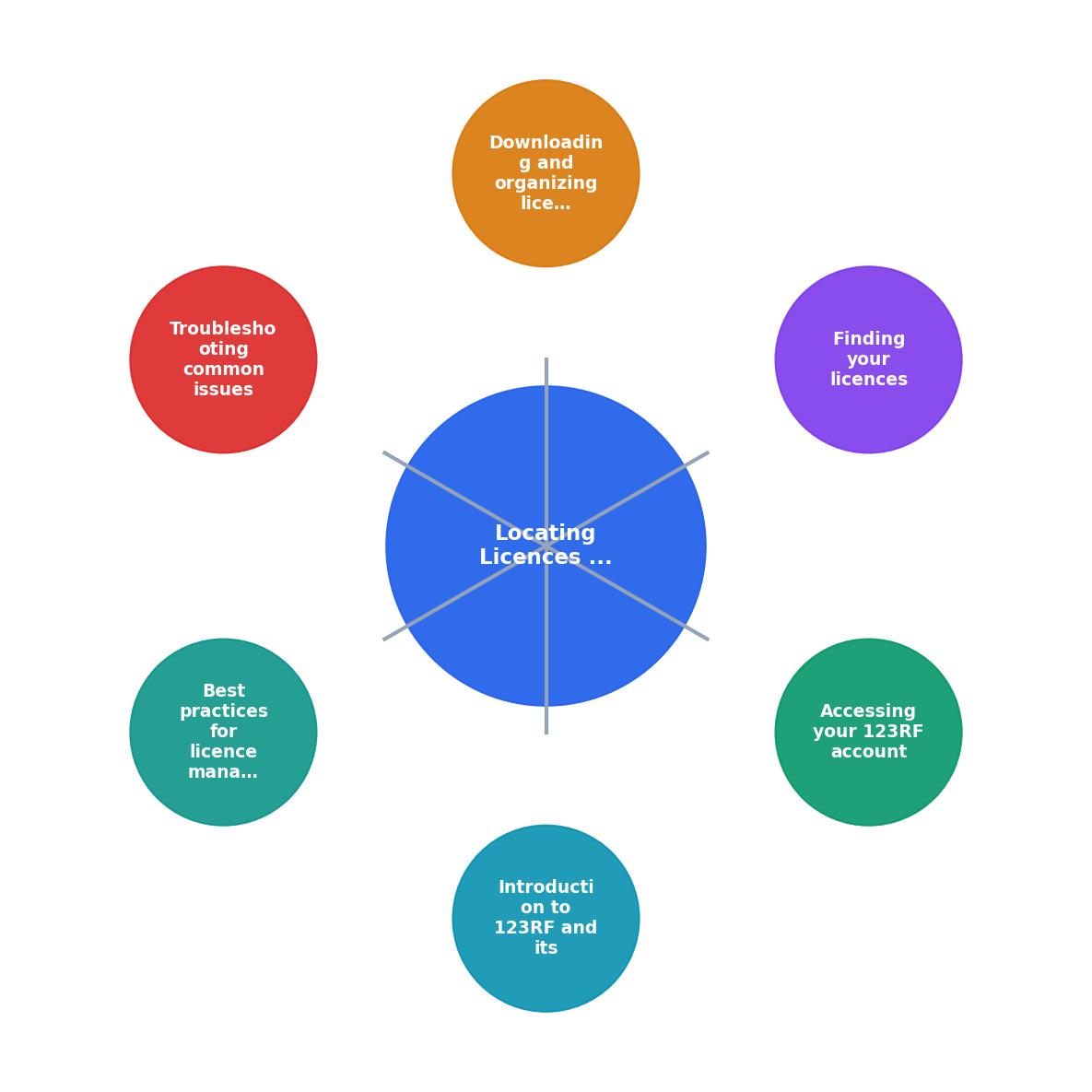
The process diagram above breaks it down: Log In, open My Account, go to Download History, locate the asset, and save the licence record. Five steps, no detours.
If you purchased assets using On-Demand Credits rather than a subscription, those downloads still appear in the same Download History. The licence type column will reflect the credit-based licence terms.
Downloading and organizing licences

123RF does not currently offer a one-click "download licence certificate as PDF" button the way some platforms do. Instead, your proof of licence consists of:
- Download History screenshot or export showing the asset ID, date, and licence type.
- The licence agreement page on 123RF's website (linked from the footer or help section), which defines the terms for Standard and Extended licences.
- Your payment receipt or invoice, available under the Billing section of your account.
- Take a full-page screenshot of the Download History entry (browser extensions like GoFullPage work well for this).
- Save the screenshot as
123RF-[AssetID]-[ClientName].png. - Download the corresponding invoice from the Billing section and save it alongside the screenshot.
- Store both files in a folder structure like:
Licences/ClientName/ProjectName/123RF/.
Here is an example dashboard showing what a well-organized freelancer's licence collection might look like after a few months of consistent filing:
Example: Freelancer Licence Archive
If you work across multiple stock platforms beyond 123RF, a tool like Licence Downloader can pull licence records from several services into one place, cutting the manual screenshot-and-file routine down to a few clicks.
Troubleshooting common issues
Download History is empty. This usually means you are logged into the wrong account. If you registered with Google SSO and also have an email-based account, check both. 123RF does not merge accounts automatically.
Asset shows "Expired" next to it. If your subscription lapsed, the download history still exists, but you may not be able to re-download the file. The licence itself remains valid for assets downloaded during an active subscription period. Screenshot the record before it becomes harder to access.
Invoice not matching the asset. 123RF invoices cover subscription periods or credit packs, not individual images. Match the invoice date range to the download date to connect them.
Cannot find a specific image. Use the search/filter bar within Download History. You can filter by date range or file type (photo, vector, video). If you remember the asset ID, paste it directly into the search field.
Best practices for licence management
Staying organized is not glamorous, but it separates professionals from people who panic during audits. Here are habits that pay off:
- File immediately. The moment you download an asset, save the licence record. Batching this task "for later" means it never happens.
- Use consistent naming. A pattern like
[Platform]-[AssetID]-[Client]-[Date]makes searching trivial. - Back up to cloud storage. Google Drive, Dropbox, or OneDrive. If your laptop dies, your licence proof should survive.
- Review quarterly. Spend 15 minutes every three months verifying that recent downloads have matching licence files. Gaps are easier to fix when they are fresh.
- Keep the licence terms PDF. 123RF updates their licence agreement occasionally. Save a copy of the version that was active when you downloaded each asset.
123RF Licence Download Checklist
Your progress is saved automatically in your browser.
FAQ
Frequently Asked Questions
What is your current system for organizing stock licences, and has it ever saved you during a client request? Share your approach below.
Additional Resources
- End User Licensing Agreement and Legal Matters - 123RF grants You a non-exclusive, royalty-free, worldwide, perpetual, non-transferable and non-sublicensable license to use, reproduce, modify, publish and ...
- One plan. Every asset. All your tools. - Full access to 123RF AI Suite Information. Access to over 270 million images, vectors, videos, audio, and fonts; Standard License and Extended License.
- Standard license terms for 123RF - The licensor grants the customer a free, limited usage license for all content with or without watermark to create drafts, test layouts and demo ...
Need to Download Your Licences?
Save hours of manual work. We download all your stock photo licence certificates for you.
Get Started“Thanks to LicenceDownloader.com, I was able to download more than 1,000 Freepik licences and receive them all at once via ZIP.”
Marlon Mainardy