
You work across multiple stock platforms, Freepik, Shutterstock, Adobe Stock, Canva, Envato, and every time a client asks for licence proof, you spend 20 minutes hunting through account dashboards. Your spreadsheet from six months ago is outdated. You have screenshots in three different folders. If a legal question came up tomorrow, you'd scramble. A centralized licence vault changes that: one searchable place where every licence lives, with download links, expiry dates, and client assignments. We'll show you how to build one using Notion and Google Drive.
Photo by Wolfgang Weiser from Pexels
TL;DR:- Set up a Notion database as the central registry for all stock licences across platforms
- Use Google Drive to store actual licence PDFs and certificates, linked from Notion
- Automate metadata capture (platform, date purchased, expiry, client project) to eliminate manual entry
- Run monthly syncs to catch forgotten purchases and update expiry dates
- Implement a simple tagging system in Notion for quick filtering by client, platform, or usage type
Why a centralized vault matters now
Digital asset management isn't optional anymore. Clients demand proof of legal standing. Agencies face compliance audits. Solo creators get copyright claims on social ads. The difference between chaos and confidence is a 30-minute setup investment today.
The stakes are real. A single untracked licence or expired certificate can trigger a takedown notice, damage your reputation, and cost you time and money to resolve. More importantly, when a client's legal team emails asking "show me the licence for asset XYZ," you need an answer in seconds, not a panic search through five platforms.
A vault is insurance. It's also permission architecture, you know exactly which assets are licensed for which uses, who paid, and what the restrictions are.
Common mistakes that sink vault setups
Before you build, understand what fails:
Scattered storage. Licences in email, Slack, Downloads folder, Google Photos, and a spreadsheet on your desktop mean none are findable. Dropbox alone doesn't work because you lose context (which client? which project? when does it expire?). A vault requires a single source of truth.
No expiry tracking. Yearly subscriptions renew. Trial periods end. If you don't flag expiry dates, you'll hit a situation where you swear you're licensed and you're not. Three months later, a platform flags your image and you lose the argument because your proof is outdated.
Manual data entry bloat. Typing every licence into a spreadsheet is miserable. You'll skip it. The vault will rot. Instead, use templates and automation to pre-fill common fields so you only add context that matters.
No client linkage. You remember that you bought the image, but you can't recall which project it was used for. Without that link, you can't quickly answer "does client X have proof of licence for their deliverables?" Build client relationships into your vault from the start.
Forgetting platform-specific restrictions. "Extended licence," "editorial use only," "no NFTs", each platform has rules. If you don't record them, you'll misuse an asset and blame yourself later. The vault must capture the actual licence type, not just "yes, I bought it."
Step-by-step vault setup
Step 1: Create your Notion database
Open Notion. Create a new database and call it "Licence Vault" or "Stock Asset Registry."
Add these fields:
- Asset Name (text): The image/video title or a short description
- Platform (select): Freepik, Shutterstock, Adobe Stock, Envato, Canva, iStock, Depositphotos, etc. Add as many as you use
- Purchase Date (date): When you bought or added the image to a subscription
- Expiry Date (date): When the licence runs out (if applicable; subscriptions renew on a date)
- Licence Type (select): Standard, Extended, Commercial, Editorial, etc.
- Client Project (relation, link to a Clients database): Which project this image is being used for
- File Location (URL): Link to the actual PDF or certificate in Google Drive
- Cost (number): What you paid, for budgeting
- Usage Rights (text): Platform-specific restrictions ("OK for commercial web use," "no resale," etc.)
- Status (select): Active, Expired, Archived
- Notes (text): Any gotchas or special conditions

Step 2: Set up Google Drive for file storage
Create a folder structure in Google Drive:
Licence Vault (root)
├── Freepik
├── Shutterstock
├── Adobe Stock
├── Envato
├── Canva
└── Other Platforms
Inside each platform folder, create subfolders by year (2025, 2026) or by purchase month.
Download your licence PDFs and certificates from each platform and dump them into the correct folder. Yes, this is tedious for the first run, do it on Friday afternoon with coffee.
Once the files are there, right-click each PDF, select "Share," and set it to "View only" or "Viewer" access. Copy the shareable link. Paste that link into your Notion database's "File Location" field. Now every licence entry in Notion points directly to the PDF in Drive.
"We shape our tools, and thereafter our tools shape us.">, Notion AI connector for Google Drive
Step 3: Automate data capture
You don't want to manually enter every licence. Use these shortcuts:
For Freepik and Shutterstock: Export your download history as CSV. Load it into a spreadsheet. Copy the columns (date, image name, licence type) and paste them into Notion. Let Notion auto-parse the dates and clean up formatting.
For Adobe Stock: Your Creative Cloud account dashboard has a "Licences" page that shows all downloads. Take screenshots or export the list, then bulk-populate Notion.
For Canva Pro: Your downloads are tracked in the app itself. Export a monthly report if available, or manually add Canva purchases once a week as part of your routine.
For Envato Elements: Log in, go to Downloads, and export the list. Same approach.
The goal is to spend five minutes per month per platform, not five hours setting it all up at once.
Step 4: Link Notion to Google Drive
In Notion, add a "Files" database synced to your Google Drive folder. Use Notion's native Google Drive integration to embed the licence folder structure inside your database view. This means you can see thumbnails of licence PDFs right in Notion without jumping to Drive.
Set up a Notion database view with filters so you can quickly see:- All active licences expiring in the next 30 days
- Licences by platform
- Licences assigned to a specific client project
- Expired licences (for archival)

Step 5: Establish a monthly sync routine
Every first Monday of the month, spend 30 minutes on vault maintenance:
- Log into each platform (Freepik, Shutterstock, etc.) and check for new downloads since last month
- Export the new list and add entries to Notion
- Scan the Expiry Date field in Notion for anything expiring within 30 days and flag it
- Check your "Status" field and move any actually-expired licences to "Archived"
- Spot-check a few File Location links to make sure the PDFs in Google Drive are still there
Tools and workflows that accelerate this
Zapier or Make.com: If you're really keen, set up a Zapier automation that monitors your stock platform accounts and sends new downloads to a Notion inbox. Then you review and categorize once per week. Not essential, but it removes a friction point.
Google Drive File Stream: Install it on your computer so the entire licence folder syncs locally. This means you can search licence PDFs offline and grab them faster if a client needs instant proof.
Notion templates: Search "Notion licence tracker" in the Notion template gallery. Some pre-built setups will save you a design step. Customize them to match your platform list.
Batch downloads: Most platforms let you download your entire licence history at once (often as a CSV or ZIP). Do this once, import it, then maintain the vault incrementally.

The process at a glance
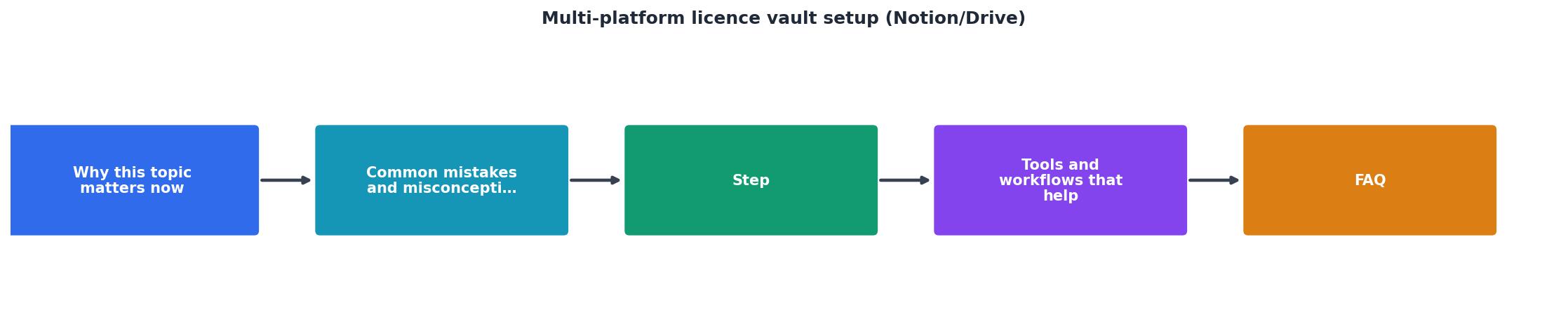
Interactive vault dashboard example
Here's what a working licence vault dashboard looks like. This example shows a typical freelancer's collection across three months and multiple platforms:
Licence Vault Summary
This is a real-world snapshot of a typical freelancer using the vault system across Freepik, Shutterstock, Adobe Stock, Canva, Envato, and iStock. Notice that 8 licences are expiring within the next month, these will trigger a renewal reminder during next week's sync.
Key points to remember
Multi-Platform Licence Vault Setup Checklist
Your progress is saved automatically in your browser.
FAQ
Frequently Asked Questions
Additional Resources
- Notion AI connector for Google Drive | Notion Help - Go to Settings → Notion AI . Select + next to Google Drive . Make sure you're in the correct Google workspace, and keep Notion open during setup. all Google ...
- Notion Vault Sync - Obsidian Plugin - Open Settings → Community Plugins → Browse Search for Notion Vault Sync Click Install, then Enable Manual Installation. Syncs a vault into Google Drive for ...
- Notion Media Capture Database + Course Database - In this video I demonstrate the Media Vault, a Notion database for capturing, storing, and organizing notes/highlights across articles, videos, ...
Need to Download Your Licences?
Save hours of manual work. We download all your stock photo licence certificates for you.
Get Started“Thanks to LicenceDownloader.com, I was able to download more than 1,000 Freepik licences and receive them all at once via ZIP.”
Marlon Mainardy