Responding to a DMCA Notice Related to Canva Images
You opened your email and found a DMCA takedown notice pointing at an image you grabbed from Canva. Your stomach dropped. The good news is that most of these notices can be resolved quickly if you know the right steps, and many turn out to be mistakes or automated overreach. This guide walks you through verifying the claim, gathering your proof, and responding with confidence so your business stays protected.

You opened your email and found a DMCA takedown notice pointing at an image you grabbed from Canva. Your stomach dropped. The good news is that most of these notices can be resolved quickly if you know the right steps, and many turn out to be mistakes or automated overreach. This guide walks you through verifying the claim, gathering your proof, and responding with confidence so your business stays protected.
Photo by Valentin Ivantsov from Pexels
TL;DR:- A DMCA notice is a formal copyright complaint, not an automatic guilty verdict.
- Verify the claim first: check whether the image is actually yours, whether your Canva licence covers the usage, and whether the claimant is legitimate.
- Gather your licence proof, download history, and usage context, then respond or file a counter-notice if the claim is wrong.
- Prevent future notices by keeping organized licence records from day one.
What Is a DMCA Notice?
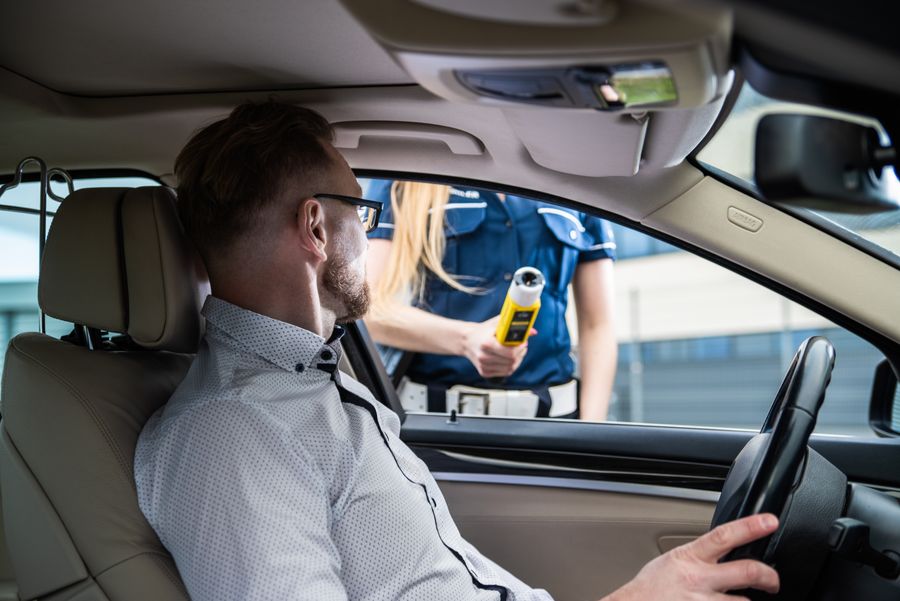
The Digital Millennium Copyright Act (DMCA) is a U.S. law that gives copyright holders a fast way to request removal of content they believe infringes their rights. When someone files a DMCA takedown notice against your Canva image, the hosting platform (Meta, Shopify, Amazon, your web host) is legally required to act on it quickly, usually by removing the content.
Here is what a typical DMCA notice contains:
- Identification of the copyrighted work the claimant says they own.
- Identification of the infringing material and its URL or location.
- A statement that the claimant believes the use is unauthorized.
- Contact information and a signature (physical or electronic).
Verify the Claim First
Before you panic or pull content down yourself, take 15 minutes to verify the notice. Not every DMCA claim is valid.
Step 1: Read the notice carefully. Identify which specific image is being challenged and who filed the claim. Note the claimant's name and the URL they referenced.
Step 2: Check your Canva account. Log in, go to your download history, and confirm you actually downloaded that image through Canva. If you used Canva Pro, the image should appear in your usage history.
Step 3: Match the licence to the usage. Canva Free images carry a free content licence. Canva Pro images come with a broader commercial licence. Check whether your specific use (product packaging, ads, merchandise) falls within the licence scope. Canva's Content Licence Agreement spells out what is and is not allowed.
Step 4: Research the claimant. Google the name or company. Some claimants are legitimate photographers whose work ended up in Canva's library through a contributor. Others are known for sending mass automated notices.
Gather Your Documentation
Responding to a DMCA notice without documentation is like showing up to court without evidence. You need organized proof that you had the right to use the image.
Essential documents to collect:
- Canva download receipt or history showing the image, date, and your account type (Free or Pro).
- Licence certificate or proof of licence from Canva. Canva Pro users can access licence details through their account, though finding them is not always straightforward.
- Invoice or subscription confirmation proving you held an active Canva Pro subscription on the date you downloaded the image.
- Context of use showing how and where you used the image (screenshot of your ad, product listing, or website page).
- The original DMCA notice itself, saved as a PDF.
"The safest way to ensure you stick to this agreement is to only upload content you created yourself, or that you have permission to use.">, Intellectual Property Policy
If you use images from multiple platforms, keeping track of every licence manually gets messy fast. A tool like Licence Downloader can bulk-download your Canva licence certificates alongside proof from Freepik, Shutterstock, and other platforms, so everything lives in one searchable archive.
The following diagram shows the full response process at a glance:
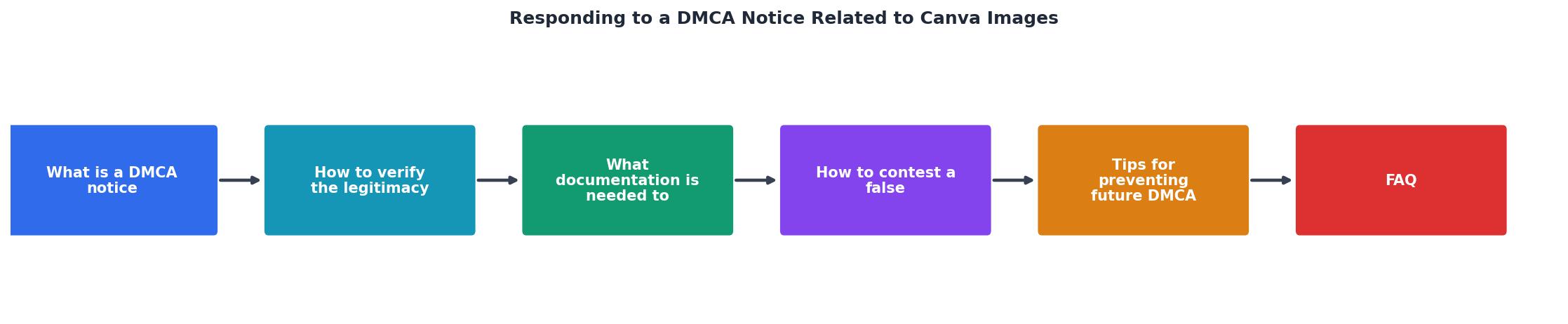
The steps are: Receive Notice, Verify Claim, Gather Docs, Decide (Valid or Invalid), Respond or Counter-Notify, and Follow Up.
Contest a False Claim

If your verification shows the claim is wrong, you have the right to file a DMCA counter-notification. This is a formal response sent to the platform that removed your content.
A valid counter-notification must include:
- Your name, address, and contact information.
- Identification of the material that was removed and its original URL.
- A statement under penalty of perjury that you believe the material was removed by mistake or misidentification.
- Consent to the jurisdiction of a federal court in your district.
- Your physical or electronic signature.
Here is a quick comparison of your two main options when a DMCA notice arrives:
| Comply with the Notice | File a Counter-Notification |
|---|---|
| Remove the content yourself | Keep the content and dispute the claim |
| No legal risk from the claimant | Small risk if claimant escalates to court |
| Fast resolution (immediate) | Takes 10-14 business days minimum |
| Appropriate when claim is valid | Appropriate when claim is false or mistaken |
| No documentation needed | Requires licence proof and signed statement |
Prevent Future DMCA Notices
Prevention costs less than response. A few habits will dramatically reduce your exposure.
- Download licence proof at the time of purchase. Do not wait until a notice arrives to hunt for it.
- Keep a licence archive. Store every certificate, receipt, and download confirmation in a dedicated folder (cloud or local).
- Understand your licence scope. Canva Pro covers most commercial uses, but not all. Standalone merchandise (like selling a Canva image printed on a t-shirt with no other design) may require an extended licence or different source.
- Track which images go where. A simple spreadsheet mapping image filenames to projects, URLs, and licence types saves hours during a dispute.
- Audit your image library quarterly. Remove expired or unlicensed assets before they become a problem.
The following interactive card shows what a typical small-business owner's DMCA response timeline looks like when documentation is already organized versus when it is not:
DMCA Response Time Comparison
DMCA Notice Response Checklist
Your progress is saved automatically in your browser.
FAQ
Frequently Asked Questions
Additional Resources
- Intellectual Property Policy - Canva will respond to alleged copyright infringement notices that comply with the Digital Millennium Copyright Act of 1998 (“DMCA”)
- DMCA Claims on Social Media: Expert Help & Guidance - The DMCA covers external links when the content itself is infringing. Canva has already validated this by independently removing her file for ...
- How to Respond to a DMCA Takedown Notice - Panitch Schwarze's intellectual property lawyers have decades of experience in working with copyright holders and can help respond to DMCA ...
Need to Download Your Licences?
Save hours of manual work. We download all your stock photo licence certificates for you.
Get Started“Thanks to LicenceDownloader.com, I was able to download more than 1,000 Freepik licences and receive them all at once via ZIP.”
Marlon Mainardy