Securely Backing Up Canva Licence Documents
You downloaded a stock photo from Canva Pro six months ago, used it on your product listing, and now a platform flags it for a copyright review. You need the licence document. You open Canva, dig through your account, and realize you never saved it anywhere outside the platform. That single missing file can cost you a takedown, a fine, or weeks of stress.

You downloaded a stock photo from Canva Pro six months ago, used it on your product listing, and now a platform flags it for a copyright review. You need the licence document. You open Canva, dig through your account, and realize you never saved it anywhere outside the platform. That single missing file can cost you a takedown, a fine, or weeks of stress. This guide walks you through backing up every Canva licence document so that never happens.
Photo by Dan Nelson from Pexels
TL;DR:- Download your Canva licence documents and store copies in at least two separate locations.
- Use a cloud storage provider with built-in encryption (Google Drive, OneDrive, or Dropbox) plus a local encrypted backup.
- Set a recurring weekly or monthly schedule so new licences never slip through the cracks.
Why Back Up Canva Licences?
Canva stores your content licence agreement details inside your account. If Canva changes its interface, you lose access to your subscription, or the platform experiences downtime during a critical moment, those records become unreachable. For a small business owner running an online store or managing social media ads, that gap creates real risk.
Three concrete scenarios where a backup saves you:
- Platform takedown requests. Amazon, Etsy, and Meta all ask sellers and advertisers to prove image rights when a complaint arrives. A backed-up licence PDF resolves the dispute in minutes instead of days.
- Subscription lapses. If your Canva Pro subscription expires or you switch plans, access to historical licence details can become limited. Your local copy remains available regardless.
- Legal disputes. Copyright trolls target small businesses with automated image-matching tools. A timestamped backup of your licence document is your first line of defense.
Choosing Secure Cloud Storage

Not every cloud service treats security the same way. Here is what matters for licence document storage:
- Encryption at rest and in transit. Your files should be encrypted both while sitting on the server and while uploading/downloading.
- Two-factor authentication (2FA). A password alone is not enough. Enable 2FA on whichever service you pick.
- Version history. If a file gets corrupted or accidentally overwritten, version history lets you roll back.
| Feature | Google Drive | Microsoft OneDrive | Dropbox |
|---|---|---|---|
| Encryption at rest | AES-128 | AES-256 | AES-256 |
| Encryption in transit | TLS | TLS | TLS |
| 2FA support | Yes | Yes | Yes |
| Version history | 30 days (free), 365 days (Workspace) | 30 days | 30 days (free), 180 days (Plus) |
| Free storage | 15 GB | 5 GB | 2 GB |
| Monthly cost (basic paid) | ~$2.99/mo (100 GB) | ~$1.99/mo (100 GB) | ~$11.99/mo (2 TB) |
For most small business owners, Google Drive or OneDrive offer the best balance of free storage, security features, and cost. Dropbox works well too, but the free tier is tight at 2 GB.
Pick one primary cloud service. Then keep a second copy somewhere else. That second copy can be another cloud provider, an external USB drive, or a NAS device at your office.
How to Encrypt Licence Documents

Cloud encryption protects your files on the provider's servers. But if someone gains access to your cloud account, they see everything. Adding your own encryption layer before uploading creates a second barrier.
Three practical methods:
- Password-protected ZIP files. Right-click your licence folder in Windows, select "Send to > Compressed (zipped) folder," then use a tool like 7-Zip (free, open-source) to add AES-256 encryption with a password. This is the simplest approach and works on any operating system.
- VeraCrypt encrypted container. VeraCrypt creates an encrypted virtual drive on your computer. You place your licence files inside it, lock it with a password, and upload the single encrypted container file to your cloud storage. Even if someone downloads the container, they cannot open it without the password.
- Boxcryptor or Cryptomator. These tools encrypt individual files before they sync to your cloud folder. Cryptomator is free and open-source. You create a vault inside your Google Drive or OneDrive folder, and every file you drop in gets encrypted automatically.
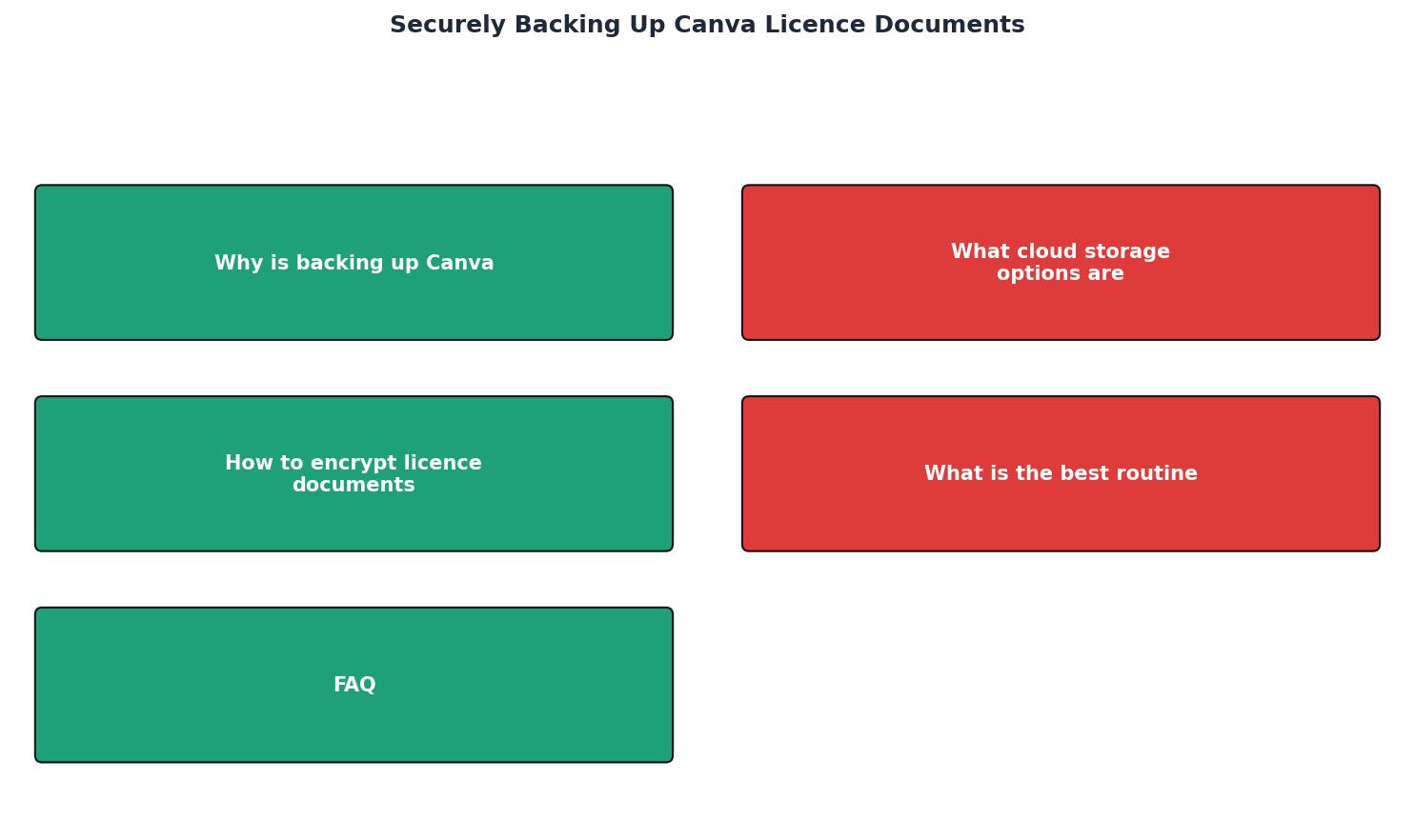
The steps at a glance: Download licence from Canva, Encrypt locally, Upload to Cloud A, Copy to Cloud B or USB, Verify backup, Log completion date.
Building a Backup Schedule
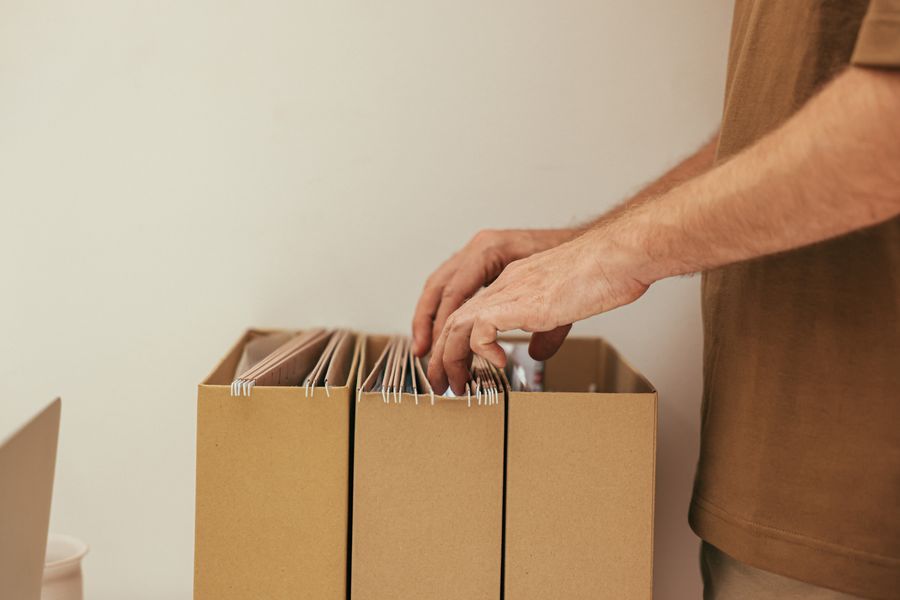
A backup you do once and forget is barely better than no backup at all. New Canva downloads happen regularly, and each one generates a licence record that needs capturing.
Weekly schedule works best if you download stock assets multiple times per week. Set a recurring 15-minute calendar reminder every Friday afternoon.
Monthly schedule fits businesses that use Canva occasionally. First Monday of the month, batch-download all new licence records and run the encrypt-and-upload process.
Here is a practical approach to automating parts of this:
- Google Drive desktop app syncs a local folder to the cloud automatically. Place your encrypted licence files in that folder, and the upload happens without manual steps.
- Windows Task Scheduler or macOS Automator can run a script that zips and encrypts your licence folder on a set schedule.
- Licence Downloader at licencedownloader.com can pull your Canva licence documents in bulk, saving you from manually navigating Canva's interface for each asset. Once downloaded, feed them into your encryption and cloud sync workflow.
Fifteen minutes a week. That is the actual time cost once your system is set up. Compare that to the hours (or days) spent scrambling when a copyright dispute lands in your inbox.
Here is an example dashboard showing what a typical small business licence backup status might look like after one month of following this process:
Example: Monthly Backup Status Dashboard
Organizing Your Backup Folder
A pile of encrypted files with names like licence_final_v2.zip helps nobody. Use a clear naming convention:
YYYY-MM-DD_canva_licence_[asset-name].pdffor individual files- Group files into monthly folders:
2026-07_canva_licences/ - Keep a simple spreadsheet or text file (
licence_log.csv) listing each asset, its download date, the Canva project it belongs to, and where you used it (product listing URL, ad campaign name, etc.)
Secure Canva Licence Backup Checklist
Your progress is saved automatically in your browser.
FAQ
Frequently Asked Questions
Additional Resources
- Downloading your personal data, uploads, and designs in ... - Step 1: Request to download uploads and designs in Account Settings · Step 2: Wait for an email from Canva about the status of your request · Step 3: Download and ...
- Copy designs or files to another team or account - If you need to move designs, files, or folders between your personal account and a team workspace, or between two Canva accounts, this guide walks you ...
- Download or save designs to your device - From the top menu, tap the Export icon. Tap Download. On the dropdown, choose a file type for your download. Learn more about the supported download file ...
Need to Download Your Licences?
Save hours of manual work. We download all your stock photo licence certificates for you.
Get Started“Thanks to LicenceDownloader.com, I was able to download more than 1,000 Freepik licences and receive them all at once via ZIP.”
Marlon Mainardy