Shutterstock Licence ZIP Structure for Client Handoffs
A client emails you three months after a branding project wraps up asking for proof that every stock photo you used was properly licensed. You dig through your Shutterstock download history, screenshot some receipts, rename a few PDFs, and zip it all together in a folder called "licences_final_v3." The client's lawyer is not impressed. A clean, predictable ZIP structure solves this problem once and turns licence handoffs from a scramble into a two-minute task.


A client emails you three months after a branding project wraps up asking for proof that every stock photo you used was properly licensed. You dig through your Shutterstock download history, screenshot some receipts, rename a few PDFs, and zip it all together in a folder called "licences_final_v3." The client's lawyer is not impressed. A clean, predictable ZIP structure solves this problem once and turns licence handoffs from a scramble into a two-minute task.
Photo by Adonyi Gábor from Pexels
TL;DR:- Organize your Shutterstock licence ZIPs with a consistent folder hierarchy: project name, asset type, then individual licence certificates paired with their corresponding image files.
- Name every file with the Shutterstock image ID and a human-readable slug so clients and lawyers can match assets to proof instantly.
- Automate the collection step with a tool like Licence Downloader to skip the manual dashboard crawling entirely.
Why structured handoffs matter
Every Shutterstock download generates a licence certificate tied to your account, your subscription plan, and the specific image ID. That certificate is your legal shield. But Shutterstock does not package these certificates in a client-friendly way. They sit inside your account dashboard, one at a time, behind multiple clicks.
When a client or their legal team requests proof of licensing, they expect a single package they can open, review, and file. They do not want to log into your Shutterstock account. They do not want a Google Drive link with 47 unsorted PDFs.
A structured ZIP file communicates professionalism. It tells the client you take intellectual property seriously. It also protects you: if a copyright dispute surfaces two years from now, you have a self-contained archive that proves exactly what was licensed, when, and under which terms.
Common mistakes that cost time

Most freelancers make the same handful of errors when assembling licence packages:
- Flat file dumps. Every PDF and image thrown into one folder with no hierarchy. A lawyer reviewing 30 assets cannot tell which certificate belongs to which image.
- Missing image IDs. Renaming files to things like
hero-banner.jpgstrips the Shutterstock image ID. Without that ID, the certificate cannot be matched to the asset. - Screenshots instead of certificates. A screenshot of your download history is not a licence certificate. Shutterstock provides actual downloadable licence documents. Use those.
- Expired or wrong plan references. If you switched from a subscription to on-demand credits mid-project, the licence terms differ. Mixing them without labels creates confusion.
- No README or manifest. The ZIP arrives with zero context. The recipient has to guess what they are looking at.
The ideal ZIP folder structure
Here is the folder hierarchy that works for single-client project handoffs:
ProjectName_Licences/
├── README.txt
├── manifest.csv
├── images/
│   ├── 2345678901_hero-banner.jpg
│   ├── 2345678902_team-photo.jpg
│   └── 2345678903_background-texture.jpg
└── certificates/
    ├── 2345678901_licence.pdf
    ├── 2345678902_licence.pdf
    └── 2345678903_licence.pdf
The key principles:
- Project name as root folder. Use the actual project or client name, not a generic label.
- Separate
images/andcertificates/directories. This keeps the structure scannable. - Shutterstock image ID as filename prefix. The ID
2345678901links the image to its certificate unambiguously. - Human-readable slug after the ID. Adding
_hero-bannerhelps non-technical reviewers identify assets without opening every file. manifest.csvat the root. A simple spreadsheet listing each image ID, filename, licence type (Standard or Enhanced), download date, and the project context where it was used.README.txtat the root. Two or three sentences explaining what the ZIP contains, which Shutterstock plan was active, and contact info for questions.
Step-by-step assembly process
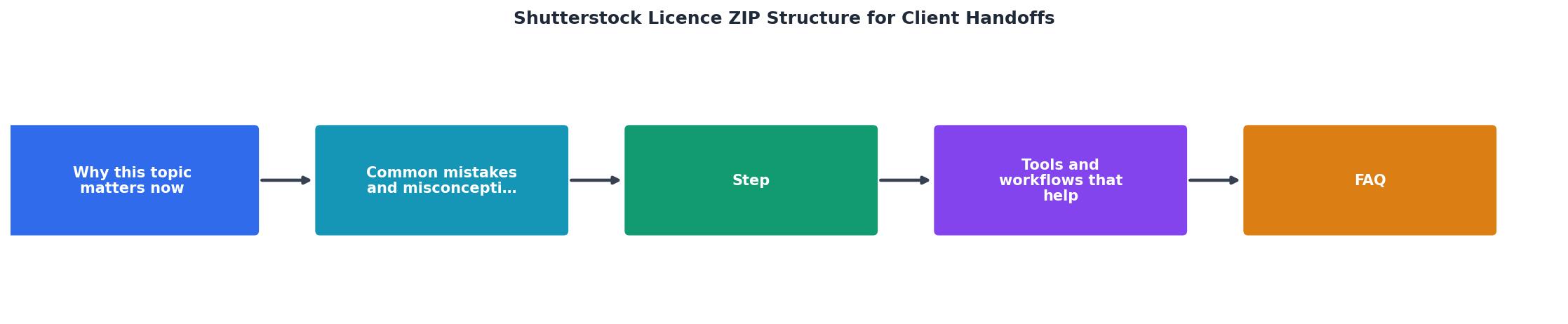
Follow these steps to build a handoff-ready ZIP. The diagram above shows the flow: Collect, Rename, Organize, Verify, Deliver.
1. Collect certificates
Log into your Shutterstock account and navigate to Download History. For each image used in the project, download the licence certificate PDF. Shutterstock generates these per-image, tied to your specific licence agreement.
If you used dozens of images across multiple projects, this step alone can eat an hour. Tools like Licence Downloader let you bulk-export certificates in one pass instead of clicking through each one individually.
2. Rename files consistently
Apply the naming convention: {ShutterstockID}_{descriptive-slug}.{ext}. Do this for both the image files and the certificate PDFs. Consistency here is what makes the ZIP self-documenting.
3. Organize into folders
Create the root project folder. Add images/ and certificates/ subdirectories. Drop the renamed files into their respective folders.
4. Build the manifest
Create manifest.csv with these columns:
| Image ID | Filename | Licence Type | Download Date | Usage Context |
|---|---|---|---|---|
| 2345678901 | hero-banner.jpg | Standard | 2026-06-15 | Homepage hero section |
| 2345678902 | team-photo.jpg | Standard | 2026-06-15 | About page |
| 2345678903 | background-texture.jpg | Enhanced | 2026-07-02 | Print brochure |
5. Write the README
Keep it short. State the project name, the Shutterstock account holder, the licence plan active during downloads, and a note that each certificate in certificates/ corresponds to the matching image ID in images/.
6. Verify and compress
Open each certificate PDF to confirm it matches the correct image ID. Spot-check two or three. Then compress the root folder into a .zip file named ProjectName_Licences.zip.
Tools and workflows that help

The manual process works for small projects with five or ten images. It breaks down fast when you are handling 30+ assets or juggling multiple client projects in the same month.
| Manual Process | Automated with Licence Downloader |
|---|---|
| Click each image in download history | Bulk-select and export all at once |
| Rename files one by one | Auto-naming with image IDs |
| Cross-reference IDs manually | Manifest generated automatically |
| 45-60 minutes per project | Under 5 minutes per project |
A few other tools that complement the workflow:
- Spreadsheet software (Google Sheets, Excel) for maintaining the manifest template. Create one template and duplicate it per project.
- File renaming utilities like Bulk Rename Utility (Windows) or Renamer (Mac) if you prefer local batch renaming.
- Cloud storage with versioning (Google Drive, Dropbox) to keep a backup of every ZIP you send. If a client loses the file, you resend in seconds.
Licence ZIP Handoff Summary
Handling Standard vs Enhanced licences
Shutterstock offers two main licence tiers, and mixing them up in a handoff creates real problems.
Standard Licence covers most digital and small-print uses: websites, social media, presentations, and print runs under 500,000 copies. This is what most freelance design projects require.
Enhanced Licence is needed for merchandise, templates for resale, unlimited print runs, or any use where the image is the primary value of the product being sold.
In your manifest, always note which licence type applies to each asset. If a client later wants to use a Standard-licensed image on merchandise, the manifest makes it immediately clear that an upgrade is needed. This small detail prevents expensive misunderstandings.
Client handoff checklist
Shutterstock Licence ZIP Handoff Checklist
Your progress is saved automatically in your browser.
FAQ
Frequently Asked Questions
Shutterstock/, AdobeStock/, and Freepik/ each with their own images/ and certificates/ subdirectories. The manifest should include a "Platform" column. This keeps everything organized without mixing licence terms from different providers.What does your current licence handoff process look like, and where does it break down? Share your approach and any folder structures that have worked well for your projects.
Need to Download Your Licences?
Save hours of manual work. We download all your stock photo licence certificates for you.
Get Started“Thanks to LicenceDownloader.com, I was able to download more than 1,000 Freepik licences and receive them all at once via ZIP.”
Marlon Mainardy