Utilizing Dreamstime Licences for Agency Work
Your agency licensed 300 Dreamstime images last quarter. A client's legal team just asked for proof of licence on 47 of them. You have two hours. If that scenario makes your stomach drop, your licence management process has a gap that needs fixing today.


Your agency licensed 300 Dreamstime images last quarter. A client's legal team just asked for proof of licence on 47 of them. You have two hours. If that scenario makes your stomach drop, your licence management process has a gap that needs fixing today.
Photo by Canva Studio from Pexels
TL;DR:- Dreamstime offers Royalty-Free (RF), Extended, and Editorial licences, each with different usage rights that agencies must track per project.
- Download licence certificates directly from your Dreamstime account's Downloads History page and store them in a structured folder system tied to client and project.
- Automate bulk retrieval with a tool like Licence Downloader to cut hours of manual work down to minutes.
Why Dreamstime Licences Matter
Dreamstime is one of the longest-running stock photography platforms, with over 200 million images in its library. Agencies use it because pricing is competitive, the catalogue is deep, and credit-based purchasing gives budget flexibility. But that flexibility creates a tracking problem.
Every image downloaded from Dreamstime comes with a specific licence type. Use an image outside its licence scope and you expose the agency to takedown notices, client disputes, and financial penalties. The risk scales linearly with the number of assets your team downloads each month.
Three licence types matter for agency work:
- Royalty-Free (RF) covers most commercial uses: websites, social media, print collateral, presentations. One purchase, unlimited use within the licence terms.
- Extended Licence adds rights for merchandise, templates for resale, and higher print runs. Required when a client sells products featuring the image.
- Editorial Licence restricts usage to news, commentary, and educational contexts. Never use editorial images in advertising or commercial campaigns.
Accessing Your Dreamstime Account

Dreamstime organizes licence records under your account's Downloads History section. Here is how to get there:
- Log in at
dreamstime.comwith your agency's primary account credentials. - Click your profile icon in the top-right corner.
- Select Downloads from the dropdown menu.
- You will see a chronological list of every image downloaded, with the licence type, date, and image ID displayed.
For agencies running Subscription plans or Credit packs, the revenue-sharing model affects how content is priced but not how licences are issued. Every download still generates a trackable licence record.
"For example: If your Media accounts for 2% of all Unlimited Plan downloads that month, you will receive 2% of the Contributor Royalty Pool.">, Dreamstime Terms of Use and Participation Guidelines
That quote describes the contributor side, but it highlights something important for agencies: Dreamstime tracks every download at a granular level. Your licence records exist in their system. The challenge is getting them into yours.
Downloading Licences in Bulk
Clicking through 300 individual licence PDFs is not a productive use of anyone's afternoon. Agencies need a bulk approach.
Manual bulk download steps:
- Go to Downloads History.
- Filter by date range matching your project or audit period.
- Open each licence link in a new tab (hold Ctrl/Cmd while clicking).
- Save each PDF with a consistent naming convention:
DT-[ImageID]-[ClientCode]-[Date].pdf. - Move files to the correct client/project folder.
Automated bulk download:
A tool like Licence Downloader connects to your Dreamstime account and pulls all licence certificates in one batch. You get consistent file naming, automatic folder sorting, and a complete audit trail without the repetitive clicking.
The difference between 15% and 90% efficiency is not abstract. On a team of four producers handling 200+ assets monthly, automation reclaims roughly 8-10 hours per month. That is billable time returned to client work.
Organizing Licences for Compliance
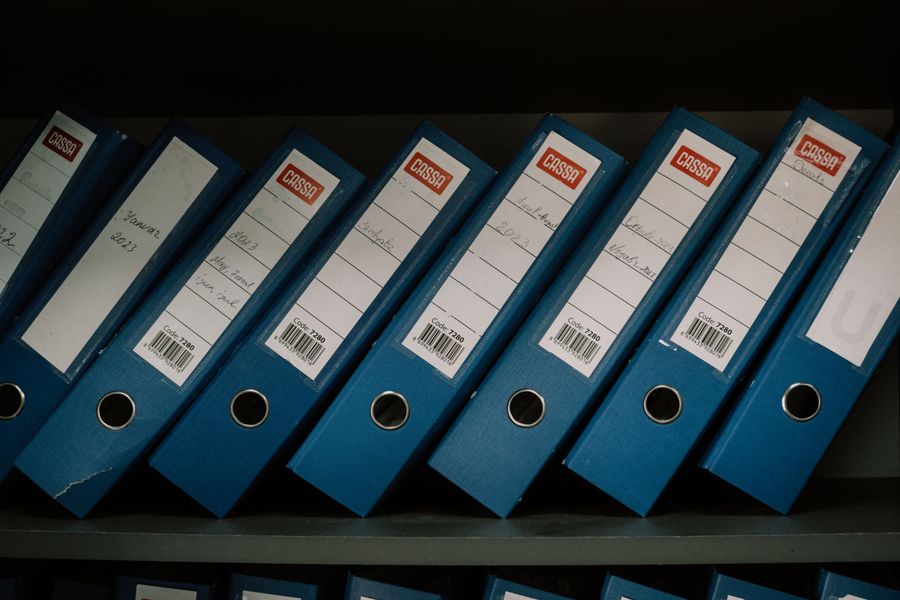
A licence certificate sitting in someone's Downloads folder is not compliance. Compliance means any team member can locate the proof for any asset within minutes, even if the person who downloaded it left the company two years ago.
Folder structure that works:
/Licences
  /Dreamstime
    /2026
      /ClientName-ProjectCode
        DT-12345678-ACME-20260115.pdf
        DT-12345679-ACME-20260115.pdf
      /AnotherClient-CampaignQ2
        DT-22345680-BETA-20260301.pdf
Naming convention breakdown:
DT= platform prefix (Dreamstime)12345678= Dreamstime image IDACME= internal client code20260115= download date (YYYYMMDD for sortability)
Nearly half of mid-size agencies have no centralized system for licence storage. That statistic should concern anyone responsible for compliance. When a copyright dispute arrives, "I think Sarah had it on her laptop" is not a defensible answer.
Metadata tracking spreadsheet:
Alongside the PDF archive, maintain a simple spreadsheet (or database) with columns for:
- Image ID
- Platform (Dreamstime)
- Licence type (RF / Extended / Editorial)
- Client name
- Project name
- Download date
- Downloaded by (team member)
- Certificate file path
Integrating Licences Into Workflows

Licence management should not be a separate task that happens after the creative work. It needs to be embedded in the production workflow itself.
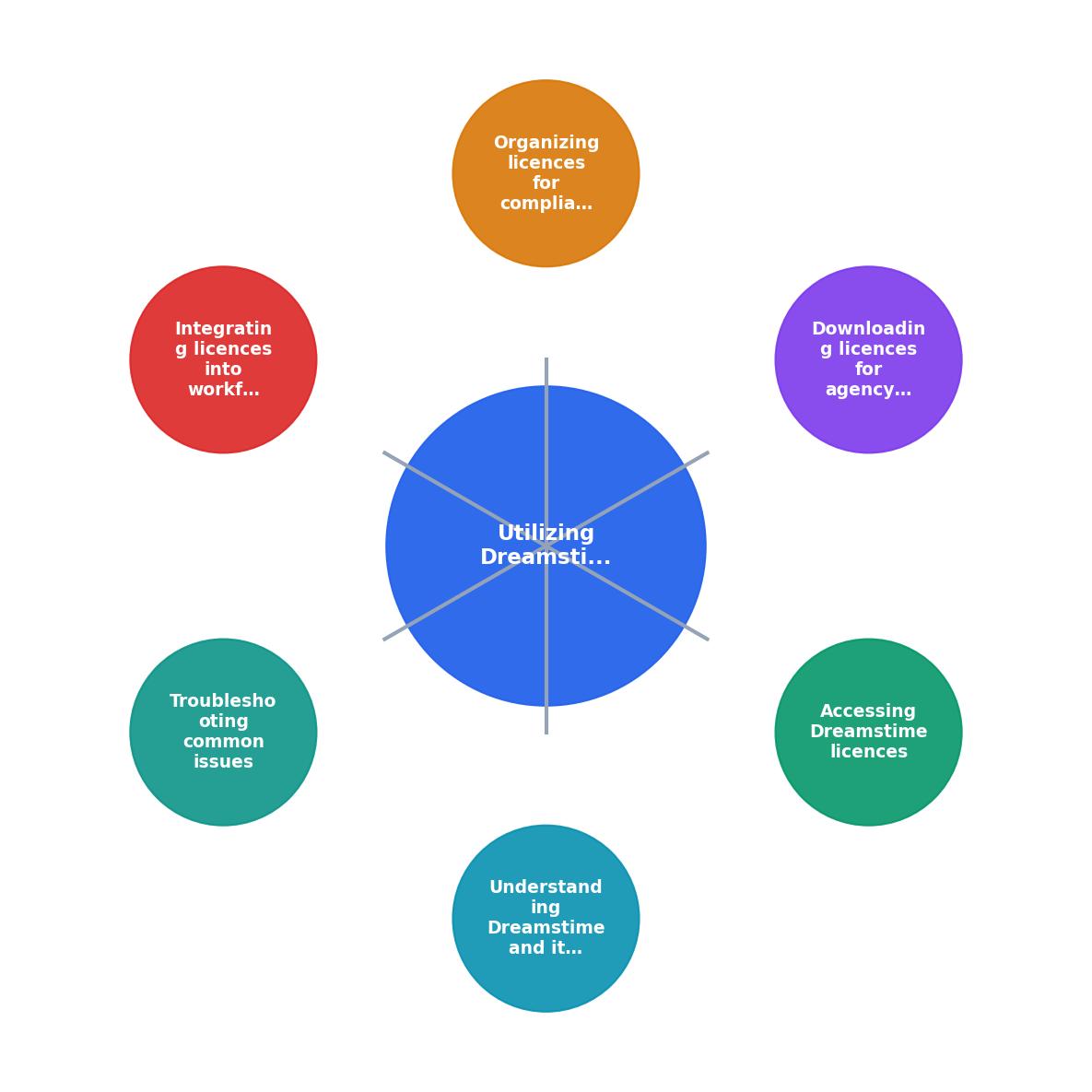
The process diagram above shows five steps: Select Image, Verify Licence Type, Download Certificate, File to Project Folder, Log in Tracker. Each step happens at the moment of asset selection, not weeks later during an audit scramble.
Practical integration points:
- Project kickoff: Include a "licence requirements" line in your creative brief. If the project involves merchandise or resale, flag the need for Extended licences upfront.
- Asset selection: When a designer picks a Dreamstime image, they verify the licence type matches the project scope before downloading.
- Download moment: The certificate gets downloaded and filed immediately. Not tomorrow. Not next week. Now.
- Project delivery: Include a licence summary document in the client deliverable package. List every stock asset used, its source, and its licence type.
- Offboarding: When a freelancer or team member leaves, their download history gets reviewed and any unfiled certificates get retrieved.
Here is an example dashboard showing how a typical mid-size agency might track Dreamstime licence status across active projects:
Dreamstime Licence Tracker, Q2 2026
Troubleshooting Common Issues
Certificate not available for older downloads. Dreamstime retains download history, but very old accounts (pre-2015) may have incomplete records. Contact Dreamstime support with your account email and approximate download dates. They can usually regenerate certificates.
Wrong licence type purchased. If a designer downloaded an RF image but the project requires Extended rights, you cannot retroactively upgrade the licence from the Downloads page. Purchase the Extended licence separately for the same image. Keep both certificates on file.
Sub-account access issues. Agency sub-accounts sometimes lose access to shared download history after permission changes. Verify that the account administrator has granted "Downloads" visibility to all relevant sub-accounts in the team settings panel.
Image removed from Dreamstime. If a contributor removes their image from the platform, your existing licence remains valid. The certificate you downloaded at purchase time is your proof. This is why downloading certificates at the moment of purchase matters. You cannot retrieve a certificate for a delisted image.
Duplicate downloads across team members. Two designers downloading the same image on different accounts means two licence charges. Use your tracking spreadsheet to check for existing licences before purchasing. A quick search by Image ID takes five seconds and can save credits.
Dreamstime Licence Management Checklist for Agencies
Your progress is saved automatically in your browser.
FAQ
Frequently Asked Questions
Additional Resources
- Dreamstime Terms of Use and Participation Guidelines - Explore Dreamstime's terms of use. Understand site usage, licensing, your rights as a user or contributor. Stay informed with our guidelines.
- How to Use Stock Images Correctly? - 1. Standard License: This license allows you to use the image for personal or internal business use. You can use it on websites, blogs, social ...
- Exploring the Gig Economy - Leverage Dreamstime tools (LicenseGuard, contributor analytics, AI-assisted content curation) to protect copyright, process sales globally, and ...
Need to Download Your Licences?
Save hours of manual work. We download all your stock photo licence certificates for you.
Get Started“Thanks to LicenceDownloader.com, I was able to download more than 1,000 Freepik licences and receive them all at once via ZIP.”
Marlon Mainardy